Overview
Conversion tracking connects social and ad activity to business outcomes. Without it, Asteria Engine can still report clicks, impressions, engagement, and spend, but it cannot reliably calculate revenue, ROAS, or true cost per result.
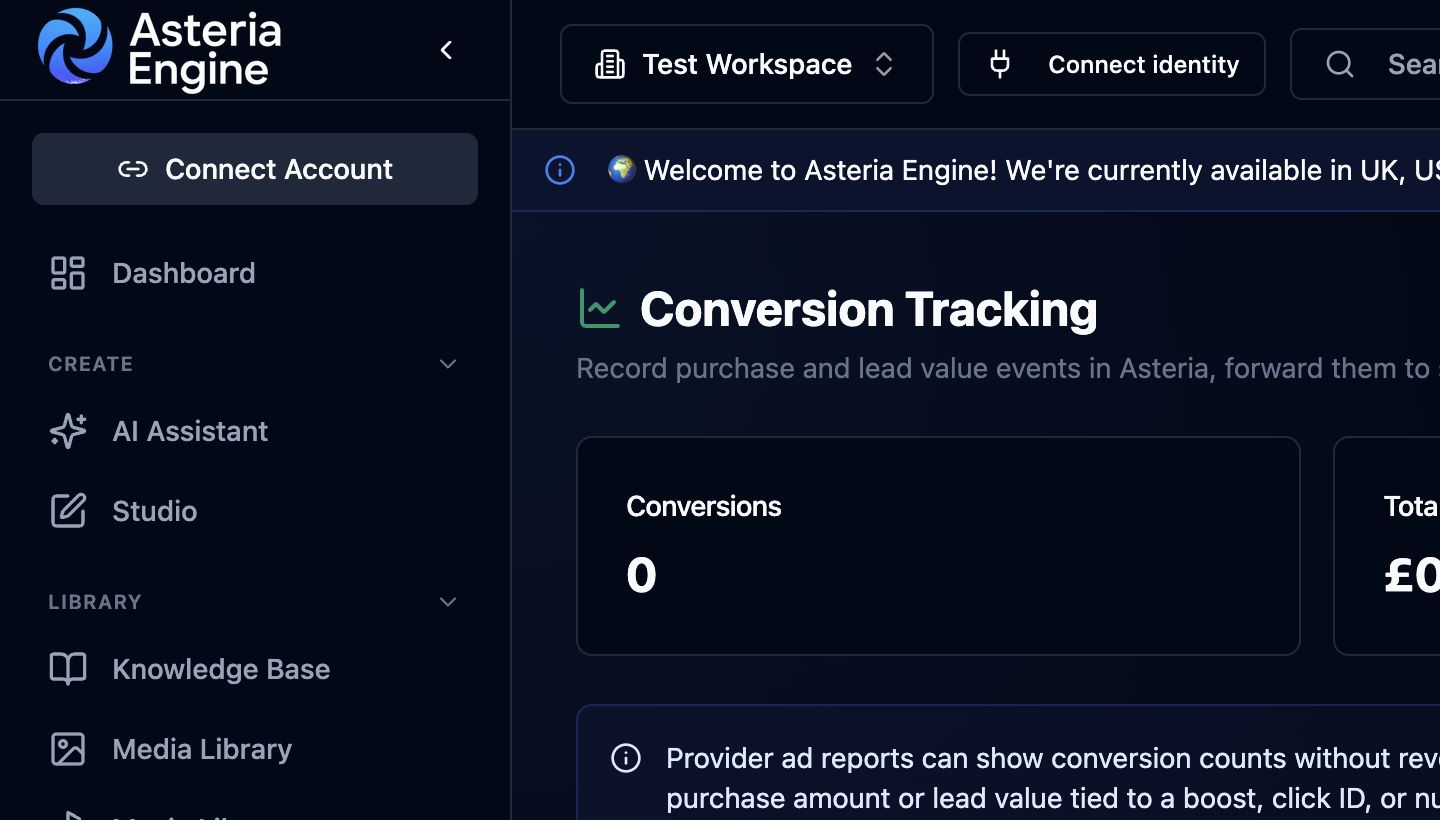 1. Review recorded conversions. 2. Check total value before relying on ROAS reporting.
Why ROAS can be empty
ROAS needs revenue value. If conversion events arrive without value, or if no revenue source is connected, Asteria can show spend and conversions but not return on ad spend.
Common reasons ROAS is unavailable:
- no conversion tracking configured
- conversion events have no value
- revenue source is not connected
- provider data has not synced yet
- attribution is not available for that campaign or platform
Supported conversion sources
Conversion data can come from different places depending on the provider and workspace setup:
- Meta Pixel and Conversions API
- Google Ads conversion actions
- lead records created from inbox or nurture workflows
- CRM or payment integrations where configured
- manual conversion imports where supported
Provider coverage varies. The conversion-tracking view identifies connected sources, missing configuration, and available tests.
Paid and organic separation
Asteria keeps paid and organic signals separate where the provider data supports that distinction. This prevents boosted performance from being treated as a purely organic result.
Where data allows it, reporting separates:
- organic impressions and engagement
- paid impressions, clicks, and spend
- conversions attributed to ads
- conversions that began as inbox or organic engagement
Testing conversion tracking
Before relying on ROAS:
- configure the provider’s conversion source
- send a test event where supported
- confirm the event appears in the provider dashboard
- confirm Asteria receives or imports it
- verify value and currency
- compare campaign-level totals after the next sync
If events are delayed by the provider, wait for the next reporting window before treating missing data as a failure.