Overview
Asteria Engine analytics helps your team answer one practical question: what should we do differently next? Use each report to inform scheduling, creative decisions, and channel priorities.
Use this guide to understand what the analytics workflow is for, how to interpret the main views, and how to turn performance data into better content decisions.
What the Analytics Area Covers
The analytics workspace helps you review:
- post-level performance
- audience and follower trends
- platform comparisons across connected accounts
- benchmarks over time
- exportable reporting for internal reviews or clients
- performance goals where you want clearer targets
This is not only for retrospective reporting. It should feed directly into planning, approvals, and future post generation.
Analytics Dashboard Basics
Go to Analytics from the main navigation.
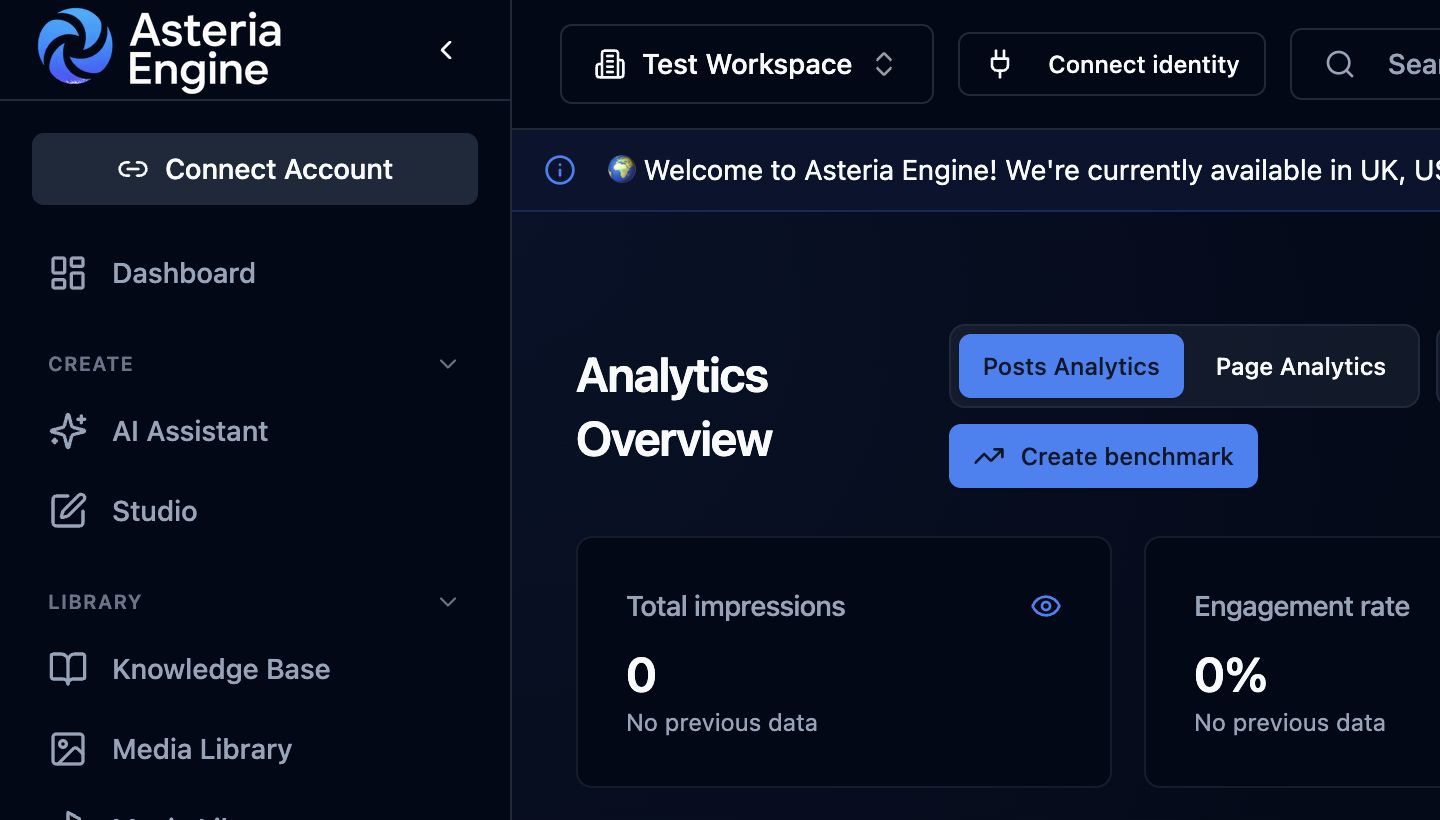 1. Switch between Posts Analytics and Page Analytics for the report you need.
The core interface is organised into two working views:
- Posts: content performance and publishing outcomes
- Audience: follower and audience trend information where platforms provide it
Use the date range control to compare useful periods such as:
- last 7 days
- last 30 days
- last 90 days
- this month
- last month
Choose date ranges that map to real operating cycles. For most teams, weekly and monthly review is more useful than checking single-day fluctuations constantly.
Posts View
The Posts view is the most useful place to start because it shows whether the actual content is performing.
Typical metrics you will review
- total reach and impressions
- total engagements
- engagement rate
- number of posts published in the selected period
Typical charts and comparisons
- engagement trend over time
- platform comparison across connected accounts
- top-performing posts in the selected range
What the Posts view is really for
Use it to identify patterns such as:
- which topics consistently earn attention
- whether one platform is carrying more of the return than the others
- whether output quality improved after a campaign, process, or brand-setting change
- whether more posts actually improved results or only increased volume
Audience View
The Audience view helps you understand how the account base is changing over time.
Typical metrics
- follower counts by platform
- net change in the selected period
Typical chart areas
- follower growth over time
- audience demographic breakdowns where supported by the platform
How to interpret this view
Audience growth matters, but it should not be read in isolation. A larger audience with weak engagement can still indicate poor content-market fit. Treat audience growth as a supporting signal, not the only success metric.
Key Metrics Explained
Engagement rate
A common formula is:
(Total Engagements / Total Reach) × 100
This is useful because it helps you compare posts and periods more fairly than raw engagement counts alone.
Reach vs impressions
- Reach = unique people who saw the content
- Impressions = total times the content was shown
If impressions are much higher than reach, the same audience is seeing the content more than once. That can indicate strong re-exposure, but it can also signal creative fatigue depending on the context.
Use benchmarks carefully
Engagement-rate definitions vary by platform, account type, report, and data provider. Avoid comparing percentages until you have confirmed that the numerator, denominator, date range, and content types are equivalent.
Use your workspace history as the primary comparison: review performance against a relevant earlier period, comparable posts, and the objectives set for that channel. If you use an external industry benchmark, record its source, publication date, market, account size, and calculation method.
Platform-Specific Reading
Different channels reward different behaviour. Use platform-level analytics with that in mind.
Look for:
- post reach and engagement quality
- audience relevance by role, industry, or seniority where available
- whether thought-leadership or proof-led content performs better
Look for:
- whether visual style is driving saves, comments, and reach
- whether feed content and story-style content behave differently
- whether branded visuals are outperforming generic visuals
Look for:
- whether page engagement is steady or declining
- whether informative or community-style posts outperform promotional content
X
Look for:
- whether shorter reactive content is working better than prepared campaign content
- whether link-driven posts are underperforming compared with native commentary
TikTok
Look for:
- whether view volume translates into meaningful engagement
- whether hooks and video framing are improving over time
YouTube
Look for:
- watch time and retention significance, not just views
- whether thumbnails and titles are helping discovery
- which topics are earning the strongest sustained attention
Google Business Profile
Google Business Profile analytics is location-level performance data from Google Search and Maps.
Use it to understand how a local profile is being discovered and acted on. GBP performance is different from normal social analytics because Google reports many metrics around location visibility and customer actions rather than only post engagement.
Common GBP metrics include:
- Search impressions on desktop and mobile
- Maps impressions on desktop and mobile
- website clicks
- call clicks
- direction requests
- bookings where supported
- business conversations where supported
- local post views where Google returns them
GBP analytics can be delayed. Asteria avoids treating today or yesterday as reliable GBP performance because Google Business Profile performance data is commonly delayed by roughly 48 hours.
If GBP analytics returns empty data, check:
- the location is connected to the selected workspace
- the account has the right Google Business Profile permissions
- the selected date range ends at least two days before today
- Google has performance data for that location and metric
- the location ID is valid for the connected account
Exports and Reporting
Export workflow
- Go to Analytics
- Choose the date range and filters you need
- Click Export
- Choose the output format that fits the audience
Typical export formats are useful for different reasons:
- CSV for raw analysis
- Excel for internal business reporting
- PDF for client or leadership summaries
What exports should be used for
Exports are most useful when they support a decision, for example:
- which channel deserves more effort next month
- whether a campaign outperformed the previous one
- whether a client account is improving enough to justify the strategy
Exports are less useful when they are generated only as reporting theatre.
Benchmarks and Goals
Benchmarks
Benchmarks let you save a period and compare later performance against it.
Good benchmark examples:
- a quarter baseline
- a pre-campaign baseline
- a post-rebrand baseline
- a “before approvals process changed” baseline
That gives the team a clearer answer than vague statements like “performance feels a bit better lately.”
Goals
Where goals are used, keep them tied to actual business or channel outcomes rather than vanity numbers alone.
Reasonable examples include:
- follower growth target for a launch period
- engagement-rate target for a specific channel
- post volume target for a team proving consistency
- reach target for a campaign period
A useful goal should help prioritisation. If it does not change behaviour, it is just decoration.
Scheduled Reports
Scheduled reports are helpful when stakeholders need regular visibility but do not need to live inside the product every day.
Typical use cases:
- weekly internal performance summary
- monthly client snapshot
- leadership visibility for cross-channel output
Use scheduled reports for distribution and consistency, but keep real analysis inside your actual review process. No automated email replaces a proper editorial or strategic readout.
How to Turn Analytics into Better Content
Weekly review questions
Ask these questions every week:
- Which posts genuinely outperformed the rest?
- Was the lift driven by topic, format, timing, or channel?
- Which underperforming posts should not be repeated in the same form?
- Is the current publishing mix too broad or too thin?
- Are we learning something that should change next week’s calendar?
Monthly review questions
At a monthly level, ask:
- which platform deserves more effort?
- which content themes should be scaled back?
- did approvals, scheduling, or media quality affect results?
- are we improving fast enough to justify the current process?
Examples of good analytics-led decisions
- doubling down on a format that is clearly outperforming
- reducing channel effort where the return is persistently weak
- changing posting times because trend data supports it
- refining prompts, example posts, or media style after repeated results patterns
Common Interpretation Mistakes
Mistake 1: chasing volume without quality
More posts do not automatically create better outcomes. Balance publishing frequency with content quality and audience response.
Mistake 2: treating one spike as a trend
A single strong post is interesting. A repeatable pattern is useful. Avoid changing the whole strategy based on one anomaly.
Mistake 3: comparing unlike periods badly
Campaign weeks, quiet seasonal weeks, and launch periods are not equal. Compare comparable windows where possible.
Mistake 4: reading native platforms and Asteria as if they must match exactly
Minor differences in timing, sync cadence, and definitions are normal. Focus on direction and relative performance, not perfect one-to-one parity everywhere.
Troubleshooting
Missing analytics data
Check these first:
- the platform connection is still active
- the account has had enough time to import reporting data
- the platform exposes that metric for the connected account type
Data does not match the native platform exactly
Possible reasons include:
- different metric definitions
- sync timing differences
- timezone differences
- the platform updating historical numbers later
This is why trends and relative comparisons matter more than obsessing over tiny reporting mismatches.
Export issues
If an export is failing:
- confirm the selected date range contains data
- reduce filters if the export is too narrow
- try a different export format
- contact support if the issue persists
Recommended Next Steps
To get more value from analytics, pair this guide with:
- Content Calendar Guide
- AI Content Generation Guide
- Getting Started Guide
- Platform-Specific Issues Guide
Use analytics for both retrospective reporting and improving the next round of content.