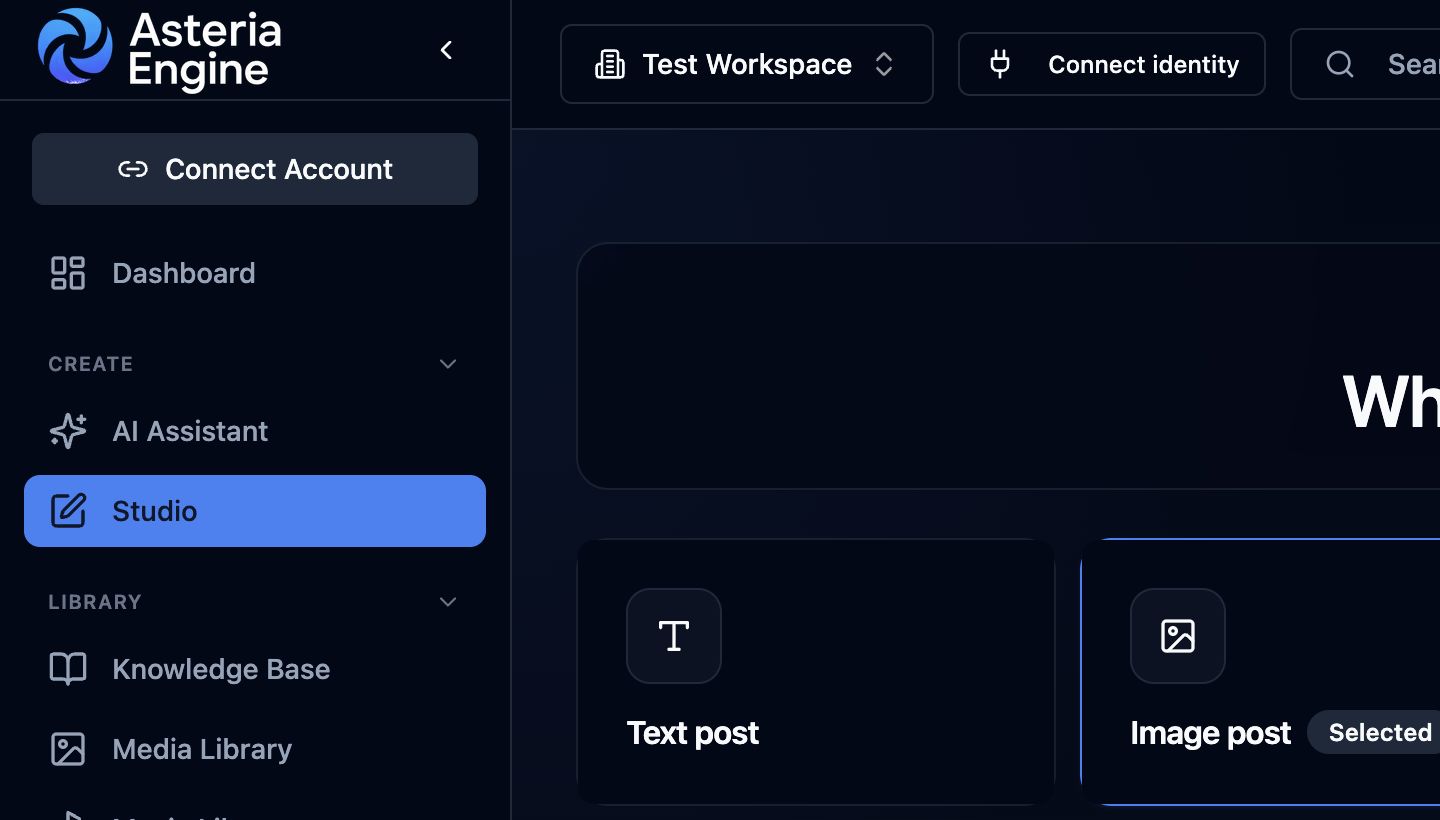
 1. Open Studio. 2. Choose an image-led format before reviewing the prompt and reference images.
When an image does not generate
If Studio cannot create an image, start with the message shown beside the failed generation. A temporary service problem, an unsupported edit, a reference-image issue, or a safety restriction can all stop a request.
Try these steps in order:
- Read the complete error message.
- Check that the prompt clearly describes the image you want.
- Remove unnecessary sensitive wording without changing the legitimate purpose of the image.
- Confirm that any reference image finished uploading.
- Try the request once more.
Do not submit the same request repeatedly while a generation is still running, because repeated requests may use additional credits.
Safety restrictions
Image-generation services apply safety rules. Legitimate requests involving children, health, safety, financial products, or regulated services can require more careful wording.
If a request is blocked:
- describe the business purpose plainly
- remove graphic, ambiguous, or unnecessary personal details
- avoid asking for misleading identities, documents, endorsements, or unsafe activity
- use a neutral visual direction when a realistic scene is not essential
Do not attempt to bypass a safety restriction. If an appropriate prompt remains blocked, contact Asteria Engine support.
Edit the current image or start again
Use an edit instruction when you want to keep important parts of the current image. State exactly what must remain unchanged and what should be different.
For example: “Keep the product, camera angle, and background. Remove the headline and make the lighting warmer.”
Use Regenerate without edit instructions when you want a completely new direction rather than a revision of the existing image.
Use a product reference correctly
For product content, select a clear and accurate product photograph. Then check that the saved product name, description, colour, dimensions, and installation details are correct before generating.
Always inspect the result before publishing. Confirm that:
- the correct product is shown
- its shape, colour, scale, and important details are accurate
- the setting does not imply an unsafe or impossible use
- logos and written text are correct
- the image does not add unsupported features or claims
If the result looks unrelated
- Confirm that the intended reference image is selected.
- Make the prompt specific about what must remain unchanged.
- Remove conflicting instructions.
- Check the product or brand details saved in the workspace.
- Start a new generation if you want a different concept.
If several appropriate prompts fail, contact support with the Studio session URL, approximate time, format, and the message shown on screen. Never send passwords, access tokens, or social-platform credentials.