Overview
Studio keeps the asset, media prompt, and post context together so you can create, review, and refine media without rebuilding the brief in another tool.
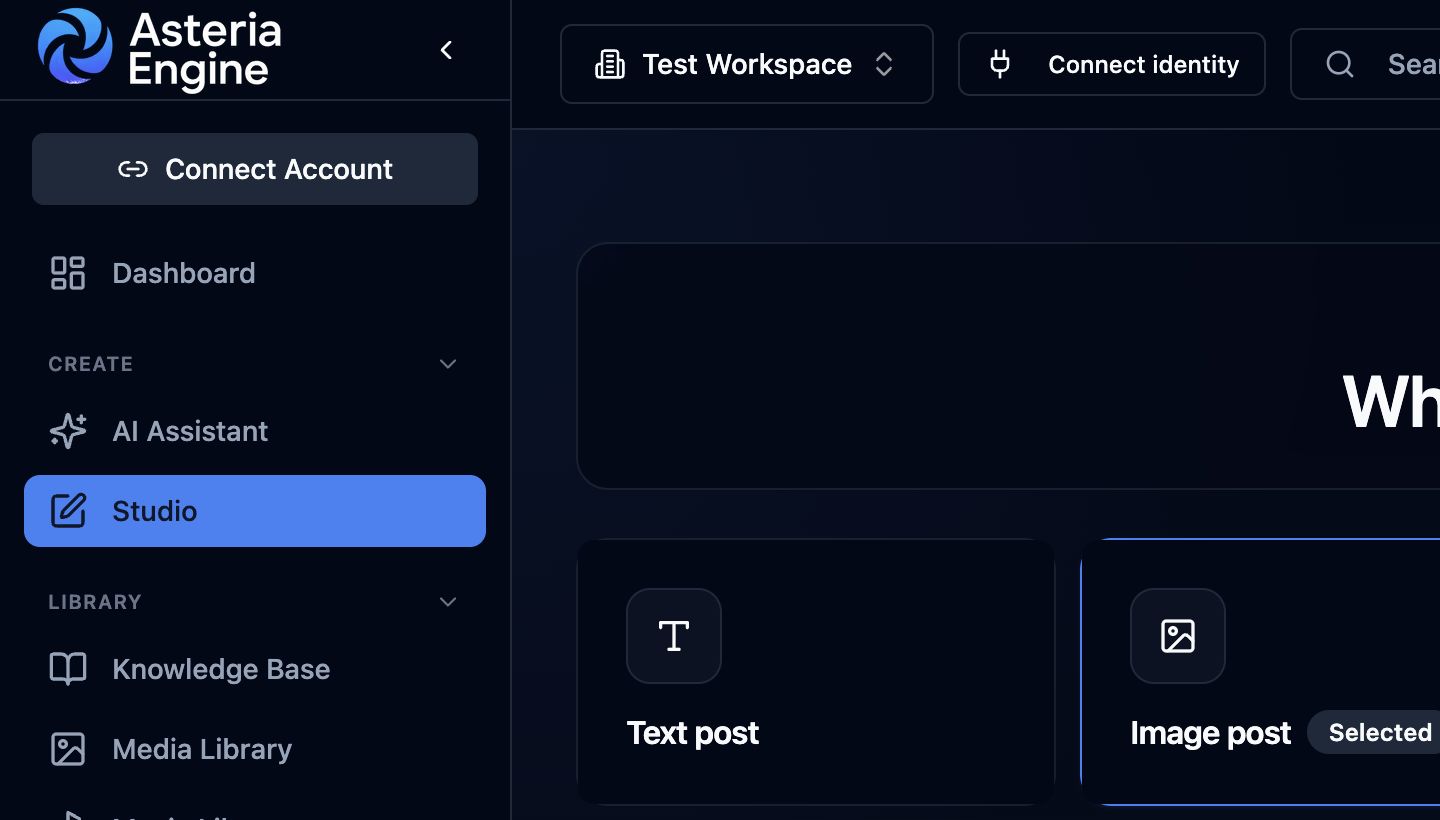 1. Open Studio. 2. Choose a text-led format, or 3. choose a media-led format before continuing to the generation workspace.
The Media Prompt
The media prompt is the current instruction for the asset on the canvas. It can come from the media designer, a selected carousel or document item, a video prompt, or a manual edit.
If a designed prompt already exists before media is attached, Studio prefills the prompt so you can review it before generation.
Supported Formats
Studio can generate or refine:
- images
- videos
- carousels
- documents
Available formats and generation models depend on your plan, workspace settings, and provider availability.
Using the Media Designer
Use Design with media type designer when the starting direction needs a more detailed prompt. This is useful when the template is broad, the format has changed, or you want to strengthen the direction before using credits on generation.
The designer updates the prompt without immediately generating an asset. Review the result and adjust any brand, product, audience, or composition requirements before continuing.
Image Generation
Image generation uses the selected platform dimensions, any explicit Studio override, and the available brand guidance. Where configured, it can also account for colour direction, visual safety rules, logo space, and text-overlay space.
The generated image returns to the Studio session automatically. Review text, logos, products, people, and factual details carefully before publishing.
Video Generation
Video generation uses the chosen aspect ratio, duration, prompt, and available brand or identity references. Optional finishing treatments depend on the models and workspace settings available to you.
Video can take longer than image generation. Keep the Studio tab open until the active generation state completes, and avoid submitting the same request repeatedly.
Carousels and Documents
Carousels and documents can use a separate media prompt for each slide or page.
Carousels
- Select a slide to load and edit its prompt.
- Generate with no slide selected to create the full set.
- Generate with a slide selected to target only that slide.
Documents
- Choose the document template before generation.
- Review the research and written content as well as the visuals.
- Use the compliance-aware workflow when it is enabled for a regulated workspace.
- Document publishing is currently supported for LinkedIn only.
Generation and Preview States
While media is generating, the canvas shows an active loading state and replaces it with the returned asset when the request completes.
The preview follows the selected platform account and device mode. Change the target account to review the same caption and asset in the relevant platform layout.
Recommended Workflow
- choose the format
- confirm the target platform and dimensions
- review or strengthen the prompt
- generate the asset
- inspect the result on the canvas
- refine and regenerate only when needed
- save the preferred version before pushing it to the linked post
Related Guides
- Studio overview
- Studio pillars and story angles guide
- Studio troubleshooting guide