Overview
Use this guide when a Studio session does not load, generate, save, or publish as expected. The checks below stay focused on actions available to workspace users. If a problem persists, contact Asteria Engine support with the session URL, approximate time of the issue, and the action you were taking.
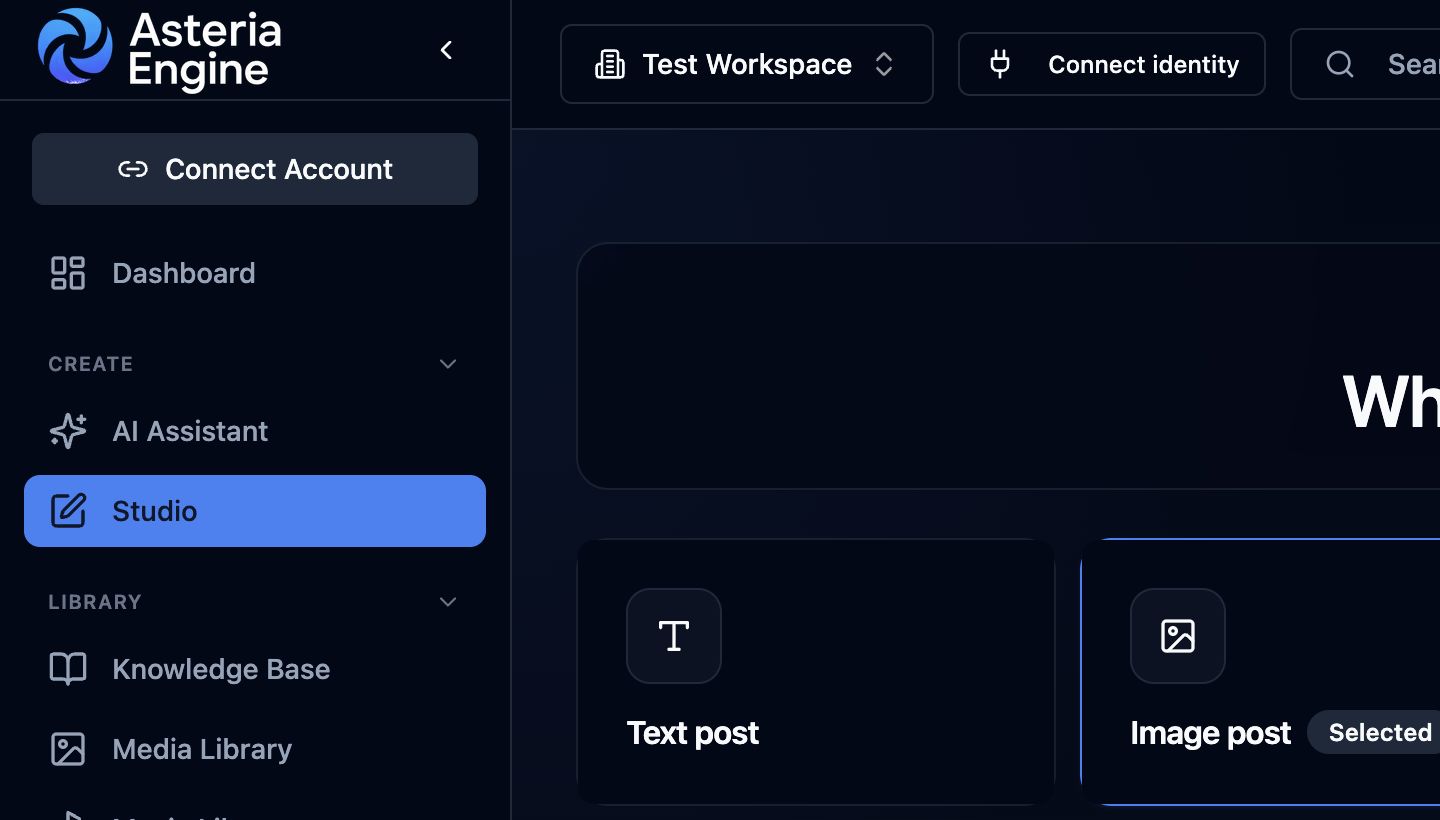 1. Start by reopening Studio from the main navigation and confirm that the format chooser loads.
Studio Does Not Load
- Refresh the page once.
- Confirm that you are still signed in and have access to the workspace.
- Open the linked post from the content calendar and return to Studio.
- Try a private browser window to rule out stale browser data or an extension conflict.
If the problem continues, do not recreate the post immediately. Contact support first so your existing session can be checked.
Live Updates Keep Reconnecting
A short reconnect can happen after a network interruption or an expired sign-in session.
- Check that your internet connection is stable.
- Refresh Studio and sign in again if prompted.
- Avoid running the same action repeatedly while Studio reconnects.
If reconnecting continues for more than a few minutes, contact support and include the time the message first appeared.
The Media Prompt Looks Incomplete
Confirm that the correct asset, slide, or page is selected. Carousel and document prompts can differ for each item.
If the prompt is still incomplete:
- select the intended asset again
- reopen the media prompt panel
- run the relevant media designer if the starting prompt needs more detail
- save the session before generating
Generated Media Does Not Appear
Generation can take longer for video, carousels, and documents.
- Wait for the active generation message to finish.
- Check the media strip for a newly added asset.
- Refresh the session once if the generation completed but the canvas did not update.
- Do not submit the same generation repeatedly; duplicate requests can consume additional credits.
If the asset is still missing, contact support with the format you selected and the approximate generation time.
A Video Does Not Play
- Confirm that generation has completed.
- Try playback in another supported browser.
- Check whether your network or browser blocks media playback.
- Download the asset, if available, to confirm that the file itself is accessible.
If other videos play normally, contact support with the affected session URL.
An Action Runs More Than Once
Keep the Studio tab open while a long-running action is in progress and wait for its status to finish before clicking again. If duplicate results appear, keep the best result and contact support if credits were charged more than once for the same action.
A Saved Version Is Not on the Linked Post
Studio changes remain in the Studio session until you deliberately push the saved version to the linked post.
- save the current Studio version
- review the caption, media, platform, and schedule
- use the push-to-post action
- open the linked post and confirm the update
Saving a Studio session does not publish or reschedule a linked post by itself.
Before Contacting Support
Please include:
- the workspace and Studio session URL
- the affected post or format
- the action you selected
- the approximate date and time
- a screenshot of the message shown on screen
Do not send passwords, access tokens, or social-platform credentials.
Related Guides
- Studio overview
- Studio media generation guide
- Studio templates, designers, and workflows guide