Overview
Team management in Asteria Engine controls who can access each workspace and what they can do. A clear role structure limits publishing access, establishes accountability, and gives stakeholders only the permissions they need.
This guide explains how workspaces, permissions, invitations, and collaboration should be structured so the platform stays usable as your team grows.
Workspaces: the Operating Boundary
A workspace represents a single brand, client, or operating context. Treat it as the main boundary for:
- connected social accounts
- content and scheduled posts
- analytics and reporting
- team membership and permissions
- brand context and AI behaviour
For agencies, the recommended setup is usually one workspace per client. For in-house teams, it is usually one workspace per brand.
Why workspace discipline matters
The more brands, channels, or stakeholders you manage, the more important separation becomes. Mixing teams and assets across workspaces usually creates avoidable confusion around approvals, ownership, and visibility.
Roles and Permissions
Asteria Engine uses four main roles:
| Role | Best used for | Core purpose |
|---|---|---|
| Owner | Business owner, agency lead, or accountable senior team member | Full control including billing and workspace-level accountability |
| Manager | Marketing lead, strategist, client lead | Runs workflow, settings, and channel operations without owner billing powers |
| Editor | Day-to-day content team member | Creates, edits, uploads, and publishes content |
| Viewer | Clients, executives, stakeholders | Read-only visibility into content and analytics |
Permission summary
| Permission | Owner | Manager | Editor | Viewer |
|---|---|---|---|---|
| Create and edit posts | Yes | Yes | Yes | No |
| Upload media | Yes | Yes | Yes | No |
| Add internal notes | Yes | Yes | Yes | No |
| Connect or disconnect social accounts | Yes | Yes | No | No |
| Manage workspace settings | Yes | Yes | No | No |
| Invite or remove team members | Yes | No | No | No |
| Billing and subscription control | Yes | No | No | No |
How to assign roles sensibly
A common mistake is giving broad control to everyone because it feels easier at the start. That usually creates more friction later.
A better default is:
- Owner for the single accountable lead
- Manager for people responsible for process, approvals, and channel control
- Editor for people producing and shipping content
- Viewer for anyone who only needs oversight
Role Guidance in Practice
Owner
Use Owner for the person who is ultimately accountable for the workspace. That may be a founder, marketing director, agency lead, or senior client account lead.
Keep Owner access tight. It should not become the default admin role for everyone senior.
Manager
Managers are the operational leads. They are usually the people best placed to control publishing standards, connected accounts, and overall workflow quality.
This role is appropriate for:
- internal marketing managers
- client account leads
- senior social strategists
- operational leads who review work before it goes live
Editor
Editors are the production layer of the team. They should be able to create, edit, upload media, and work through the publishing process without carrying broader account responsibility.
This role is appropriate for:
- copywriters
- content executives
- designers working inside the publishing workflow
- social media coordinators
Viewer
Viewers should be used more often than many teams expect. It gives stakeholders access to visibility without creating publishing or settings risk.
This role is appropriate for:
- clients who want oversight
- leadership teams reviewing output
- non-operational stakeholders who only need access to content or analytics
Inviting Team Members
Only the Owner can invite new members.
Invitation workflow
- Go to Settings > Team & Billing
- Click Add teammate
- Enter the user’s email address
- Choose the correct role
- Send the invitation
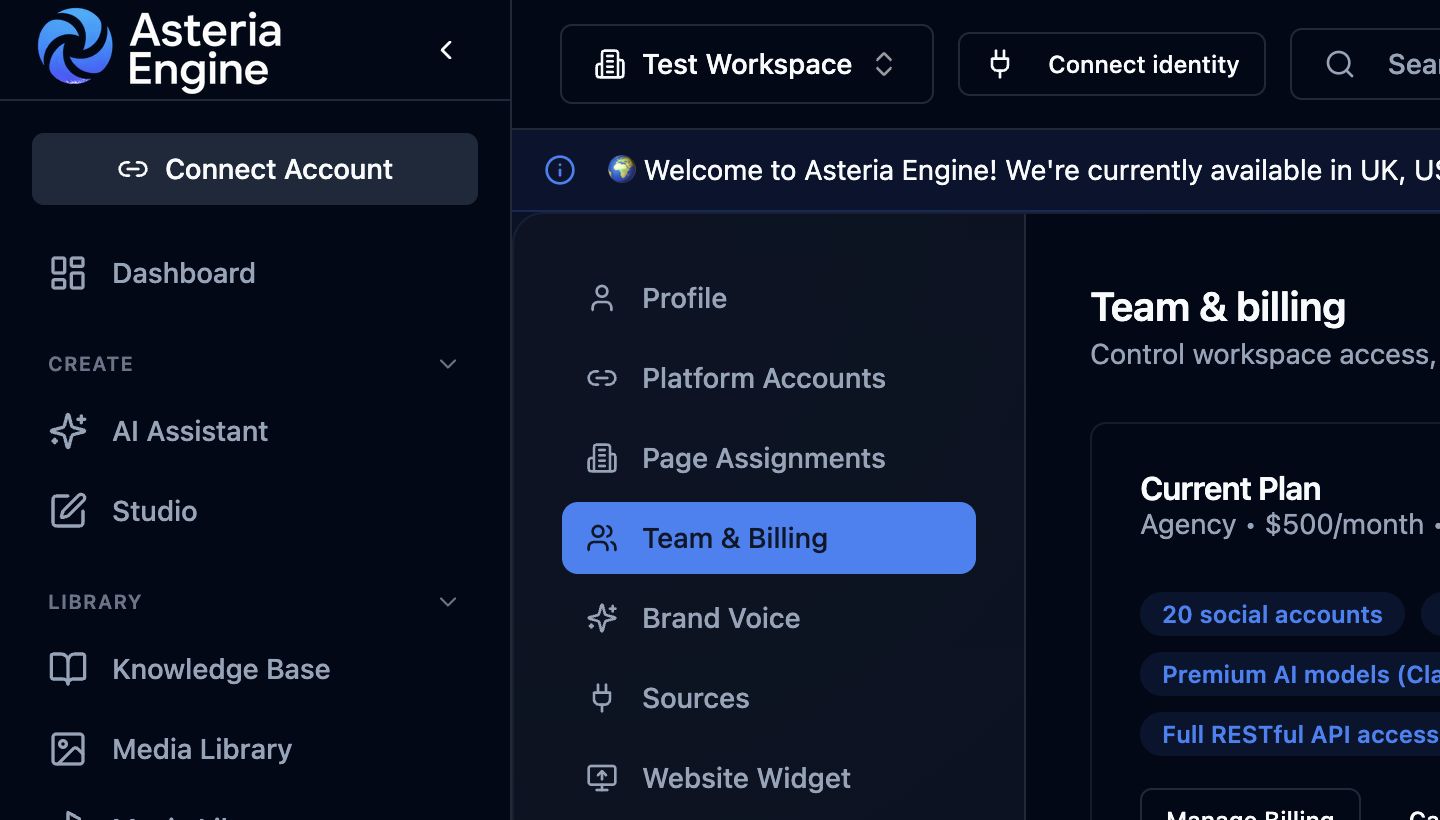 1. Open Team & Billing. Scroll below the plan summary to manage workspace members and invitations.
If the person does not yet have an Asteria account, they will be prompted to create one before joining the workspace.
Invitation discipline
Before you send an invitation, decide two things:
- what the person actually needs to do in the workspace
- what they definitely should not be able to change
That makes role selection far more reliable than choosing based on job title alone.
Multiple workspaces
Users can belong to multiple workspaces with different roles in each one. That is useful for agencies and consultants, but it also means you should review role assignments carefully when someone works across several brands.
Managing the Team Over Time
Changing roles
If a team member’s responsibility changes, update the role rather than leaving access too broad out of convenience.
- Open Settings > Team & Billing
- Find the person
- Select Change Role
- Save the new role
Role reviews are especially important after campaigns, staffing changes, or client scope changes.
Removing team members
When someone should no longer have access:
- Go to Settings > Team & Billing
- Find the member
- Remove them from the workspace
- Review any scheduled posts or workflow items they owned
Access removal should be immediate, not delayed until the end of the week.
Offboarding checklist
When someone leaves:
- remove them from every relevant workspace
- review scheduled posts they created or were managing
- review any connected external accounts outside Asteria they also touched
- ensure a Manager or Owner has inherited any important campaign context
Collaboration Inside the Workspace
Internal notes
Internal notes are best for post-specific feedback. Use them when the discussion is attached to a single piece of content rather than a broader campaign conversation.
Typical use cases:
- asking for a CTA revision
- flagging a compliance or approval issue
- leaving context for the next reviewer
- confirming why a change was made
Collaboration chat
Use workspace chat for broader coordination, campaign conversation, or quick alignment that is not tied to one post alone. See the Collaboration Chat Guide for the full workflow.
Approval workflow
For teams that need sign-off, approvals are one of the most important control layers in the platform.
A simple pattern is:
- Editor drafts the content
- Manager or Owner reviews it
- Approved posts move to scheduling or publishing
- Rejected posts return for revision with context
That creates a cleaner operating process than using screenshots, email threads, or separate approval tools for routine work.
Team Structures That Usually Work Well
For agencies
Recommended setup:
- one workspace per client
- Owner = agency lead or accountable director
- Manager = account lead or strategist
- Editor = content and creative operators
- Viewer = client stakeholders who only need visibility
This gives clients transparency without exposing settings or publishing control unnecessarily.
For in-house teams
Recommended setup:
- Owner = most accountable senior marketing lead
- Manager = social lead or marketing operations lead
- Editor = content team members
- Viewer = leadership and non-operational stakeholders
The main goal is to avoid using Owner and Manager interchangeably unless there is a genuine reason.
Team Size and Plan Reality
Team size limits are commercial and plan-dependent, so always cross-check the current Pricing page for live detail.
When planning seats, identify who needs access to run the workflow and assign the least-privileged role suitable for each person. Review membership as responsibilities change.
Security and Access Control
Good team management is also a security issue.
Minimum standard
- remove ex-team members quickly
- review permissions periodically
- keep Owner access limited
- use individual accounts only
- avoid shared credentials entirely
If you suspect misuse or unexpected changes
- remove or restrict the user if necessary
- review recent workspace activity
- review scheduled and published content
- check connected channel access if the issue may extend beyond Asteria
- escalate via Contact if needed
For broader account-protection guidance, see the Security Guide.
Common Team-Management Scenarios
Onboarding a new content team member
A reliable sequence is:
- invite them as Editor
- point them to the Getting Started Guide
- have them create a test draft
- review the draft using notes or approvals
- confirm they understand the workflow before increasing autonomy
Giving a client visibility without control
Use Viewer when a client wants to:
- see scheduled content
- review published output
- inspect analytics
but should not be able to edit, publish, or change settings.
Scaling beyond one content team member
Once more than one person is producing content, define clearly:
- who drafts
- who reviews
- who publishes
- who owns the workspace
If those responsibilities are unclear, the software cannot fix the process for you.
Troubleshooting
Invitation not received
Check:
- the email address is correct
- the invitation is not in spam or junk
- the user is not already in the workspace
- the invitation has not expired
Team member cannot access a feature
Review:
- whether they are in the correct workspace
- whether they accepted the invitation
- whether their role includes the expected permission
You cannot change someone’s role
Only the Owner can manage role assignment. If the Owner is unavailable, resolve that operationally rather than trying to work around it informally.
Recommended Next Steps
To build a stronger operating setup, pair this guide with:
Strong team structure makes every other part of the product easier to run well.