Overview
This guide shows you how to set up Asteria Engine, connect your social channels, define your brand context, and prepare a working publishing workflow. Follow the sections in order when configuring a new workspace.
Asteria Engine works best when three things are in place early:
- your workspace structure is correct
- your platform accounts are stable
- your brand settings and contact intelligence give the AI enough context to generate, reply, route leads, and prepare campaign assets
Allow enough time to confirm channel access, brand information, and workspace permissions before creating the first post.
Quick Start Checklist
- Create your account and first workspace
- Connect at least one publishing channel
- Add brand settings, website context, offers, and target audience
- Confirm contact intelligence for sign-up, quote, booking, phone, and support paths
- Upload a few strong example posts
- Create or generate your first post
- Open Studio for the first production workflow
- Review inbox, comment, and lead handoff settings
- Use Ad Studio when you are ready to prepare paid campaign packs
- Schedule content from Studio or the calendar
- Review analytics after posts go live
Before You Begin
What Asteria Engine is designed to do
Asteria Engine brings the main parts of a social media workflow into one place:
- plan campaigns and schedule content
- generate captions, images, and selected media formats with AI
- organise uploads and reusable media assets
- coordinate approvals and team collaboration
- prepare paid campaign packs through Ad Studio
- manage inbox engagement, comments, spam review, and lead handoff
- use contact intelligence for CTAs, booking links, quote paths, and phone follow-up
- publish to connected channels
- review performance after content goes live
Configure the workspace to reflect how your business or client account operates, including its channels, brand context, team access, and approval process.
Who should complete setup
The first-time setup should ideally be handled by one of these roles:
- the business owner for a single-brand account
- the client lead or strategist for an agency workspace
- a marketing manager who already controls channel access and brand messaging
If someone without channel access or brand authority handles setup, the AI can still work, but the workflow will usually need rework later.
Account Setup
Choose the right plan first
Use the pricing page for the latest commercial detail, but the practical difference between plans is usually workflow capacity rather than branding alone.
| Plan | Best fit | Social Accounts | AI Posts / month |
|---|---|---|---|
| Starter | Solo operators and very small teams | 3 | 50 |
| Professional | Growing businesses running regular publishing | 6 | 200 |
| Agency | Agencies or multi-brand teams | 20 | 600 |
| Credit Mode | Exact pay-as-you-go usage with no bundled allowance | Varies | Varies |
If you are unsure, start with the plan that matches your current operational volume rather than the most optimistic forecast. Bundled plans include monthly usage allowances. Credit Mode charges directly for what you generate. Review the current commercial detail on the Pricing page.
Create your account
- Go to
app.asteriaengine.com - Click Sign Up
- Enter your email address and password
- Verify your email if prompted
- Complete your basic profile details
Create your first workspace
A workspace represents a brand, client, or operating unit. For agencies, this normally means one workspace per client. For internal teams, it usually means one workspace per brand.
When creating a workspace:
- Enter the workspace name
- Select the closest industry category
- Set the timezone carefully
- Save the workspace and continue into setup
Timezone matters more than many teams expect. Scheduled content, calendar planning, and some reporting behaviour all depend on it.
Add your team with the right permissions
Use invitations rather than shared logins.
- Go to Settings > Team & Billing
- Click Add teammate
- Enter the user’s email address
- Assign the correct role
- Send the invitation
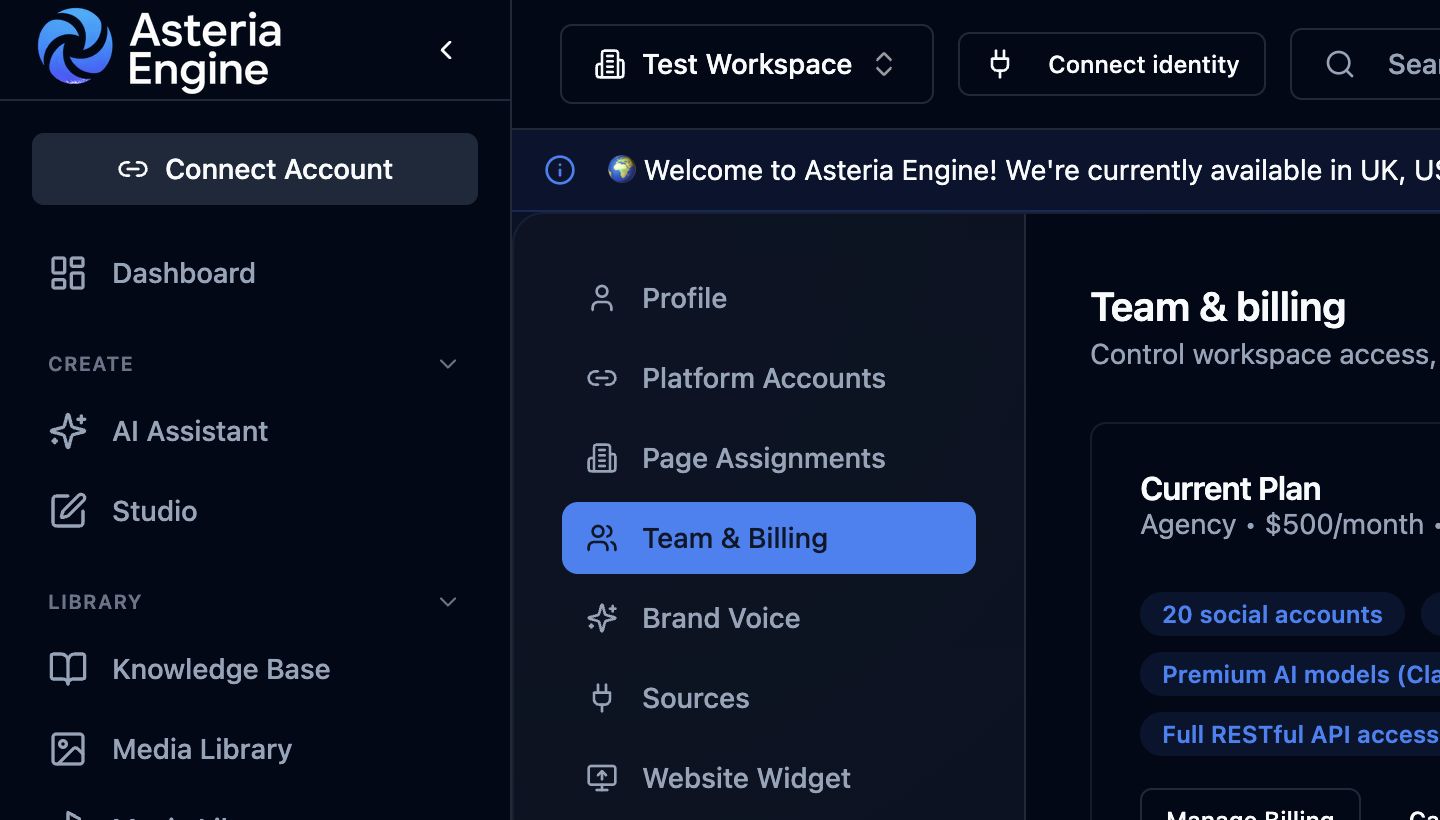 1. Open Team & Billing in Settings. The Add teammate action is available to workspace owners.
| Role | Best used for | Notes |
|---|---|---|
| Owner | Workspace owner or senior accountable lead | Full control, including billing and deletion |
| Manager | Marketing lead or client lead | Broad workspace control without owner-level billing authority |
| Editor | Content creators and day-to-day operators | Can create, edit, and publish content |
| Viewer | Stakeholders who only need oversight | Read-only access to content and analytics |
A common mistake is giving too many people Owner access. Keep Owner access tight and use Manager for most leadership-level users.
Platform Accounts
Supported channels
Asteria Engine currently supports setup workflows for:
- LinkedIn company pages
- Facebook pages
- Instagram business or creator accounts
- X accounts with the required API access
- TikTok business accounts, subject to TikTok’s review requirements
- YouTube channels
- Google Business Profile locations
Google Calendar can also be connected for meeting scheduling and booking hand-offs from inbox conversations. It is not a publishing channel, but it can help Asteria turn qualified DMs into scheduled calls when calendar access and booking settings are configured.
Connect your first platform
- Go to Settings > Platform Accounts
- Scroll to Connect a new platform
- Click Connect {platform name} next to the platform you want to add. If that platform is already connected, the button appears as Connect another
- Follow the on-screen instructions to complete the platform authorisation flow
- Return to Asteria Engine
- Confirm the connection shows as active
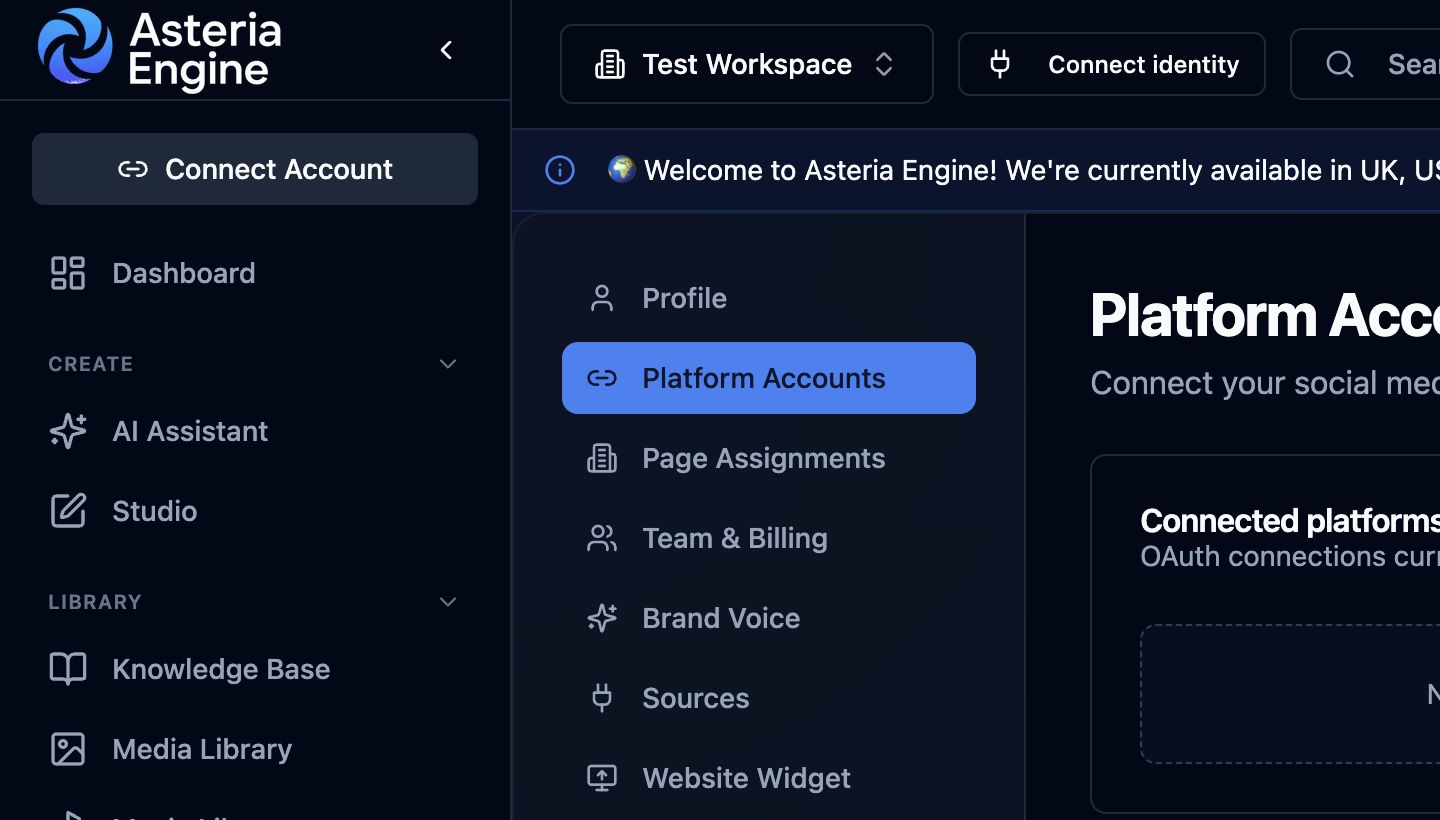 1. Open Platform Accounts in Settings, then scroll to Connect a new platform.
Some providers return every account, page, profile, channel, or location attached to the user you authorised with. If any returned account does not belong to the current workspace, disconnect and delete it from Platform Accounts. Then go to Settings > Page Assignments and remove incorrect assignments with the bin icon.
Suggested connection order
For most businesses, this order reduces friction:
| Platform | Typical difficulty | Why start here |
|---|---|---|
| Easy | Straightforward admin checks and fast setup | |
| Facebook / Instagram | Easy to moderate | Common business channels with shared Meta workflow |
| Google Business Profile | Moderate | Strong local visibility channel for Search and Maps updates |
| X | Moderate | Requires more care around API subscription and limits |
| YouTube | Advanced | More setup overhead, especially for channel and API controls |
| TikTok | Advanced | External review requirements can slow rollout |
If this is your first workspace, get one channel working well before trying to connect every network at once.
Reconnect expired channels quickly
Most platforms require periodic reconnection. When that happens:
- Return to Settings > Platform Accounts
- Find the affected account
- Click Reconnect
- Complete the platform authorisation flow again
Do not ignore expired connections. Publishing failures and missing analytics data usually follow.
Brand Settings and AI Context
Why this step matters
This is the setup stage that most directly affects content quality. Asteria’s AI does not work from a vacuum. It uses your workspace settings and reference material to shape output.
Add your brand context
Go to Settings > Brand Voice and fill in as much useful detail as possible.
Focus on these fields first:
- brand name and industry
- target audience
- business type, vertical focus, geography, and associated products or brands
- tone and voice preferences
- topics to focus on
- topics to avoid
- key messages and preferred phrases
- required or preferred hashtags
- competitors or market references
- website URL for additional context
- offers, proof points, pricing pages, booking routes, and lead paths
Weak brand settings produce generic content. Good brand settings reduce editing time and make the generated posts sound more like your real business.
Add example posts early
Example posts help the AI understand what strong output looks like for your brand.
- Open Examples Library from the main navigation
- Click Add Example
- Paste a high-quality caption
- Select the platform it came from
- Save it
Start with a focused set of representative examples that reflect the tone, structure, and message quality you want repeated. Add more only when they contribute a distinct and useful pattern.
For a deeper breakdown, see the Example Posts Guide.
Confirm contact intelligence
Contact intelligence keeps calls to action and lead handoff grounded in real business routes instead of generic links.
Check that Asteria has the right:
- sign-up URL
- quote or consultation URL
- booking URL
- pricing URL
- support email
- sales or enquiry email
- phone number for call-based follow-up
- useful landing pages for common offers
This matters across organic captions, first-comment CTAs, Ad Studio, boost flows, inbox replies, and lead nurture. If a user asks how to sign up, book, request a quote, or get a call, the AI should not guess.
Review inbox and lead readiness
If you will use Asteria for engagement, review the inbox workflow before traffic starts arriving.
Set up:
- who receives human-review notifications
- how spam or phishing should be handled
- whether the AI can draft replies automatically
- whether leads should ask for email, optional phone, or booking preference
- which workspace users should be notified when a lead is captured
For more detail, see the Inbox & Engagement Guide and Lead Nurture Guide.
Prepare paid campaign readiness
If you plan to run ads, do not start from the publish button. Start from the campaign pack.
Ad Studio uses brand context, destination research, contact intelligence, creative references, provider requirements, and targeting signals to prepare paid campaign assets. Google Performance Max, Meta carousel ads, lead routes, message routes, and traffic routes all need different fields and asset packs.
For more detail, see the Ad Studio Guide, Ad Intelligence & Automation Guide, and Conversion Tracking Guide.
Creating Your First Content
Option 1: Create a post manually
Use manual post creation when you already know what needs to go out.
- Click Create Post
- Choose the platform and format
- Write the caption or start with a draft
- Add media if needed
- Save, schedule, or leave as draft
This route is best for controlled publishing, client amends, or time-sensitive announcements.
Option 1A: Open Studio as the main production surface
Studio is now the best route when the post needs real production work rather than a quick text edit.
Use Studio when you need to:
- generate or replace media on canvas
- compare multiple assets inside one session
- rewrite the caption with model choice
- import assets from the library or stock flow
- review platform previews before scheduling
- schedule or push changes back to the linked post
Typical Studio flow:
- create the draft or open the linked post
- open Studio
- choose the content format
- generate or import media into the Media workspace
- refine the caption in the Caption tab
- review Preview
- schedule from Studio or push changes back to the linked post
Option 2: Generate with AI Assistant
Use AI Chat when you want fast idea-to-draft creation.
- Open AI Assistant
- Select the Quick chat tab
- Describe the post clearly
- Review the result
- Edit if needed and move it into the post editor
Good prompts usually include:
- the platform
- the business topic
- the audience
- the tone
- any required CTA or compliance nuance
Option 3: Use Multi-Agent generation
Use Multi-Agent generation when you need a broader planning or campaign workflow rather than a single post.
- Open AI Assistant
- Select Multi-Agent
- Enter the campaign brief
- Choose the channels, timing, and content parameters
- Generate and review the output
This is the better route for recurring planning, cross-platform campaigns, or filling gaps in the calendar systematically.
For more detail, see the AI Content Guide.
Calendar, Scheduling, and Publishing
Use the calendar as the operating view
After you have a few posts, move to the Calendar. This is where the workflow starts to become operational rather than ad hoc.
The calendar lets you:
- review scheduled content by month, week, day, or year
- spot empty publishing periods quickly
- drag and move posts where supported
- open scheduled items for edits or rescheduling
If you are evaluating cadence, consistency, or campaign spacing, the calendar is usually the most important screen in the product after setup.
See the Calendar Guide for the full workflow.
Schedule from Studio when production is still in progress
If the caption, media, or approval state is still changing, it is usually faster to schedule from Studio first.
Use Studio scheduling when:
- the post is still being generated or rewritten
- you need to review platform preview before locking the slot
- you want to create a scheduled post directly from the Studio session
- you want to push a new schedule to an already linked post
Use the calendar when the content is already prepared and the main job is spacing, moving, or reviewing the wider publishing plan.
Publishing basics
Scheduled content publishes automatically at the date and time you set, provided the channel connection is still healthy and the post itself is valid.
Use the calendar and posts views to monitor status:
- scheduled
- published
- failed
If a post fails:
- open the failed post
- read the error message
- reconnect the platform or adjust the content if necessary
- reschedule the post
Studio-linked posts can also be reopened in Studio for:
- media replacement
- caption rewrite
- document generation
- post actions such as approve, reject, move to review, or post now
Analytics and Feedback Loops
Check performance after launch
Once your first posts go live, move into Analytics and review what happened instead of relying on intuition alone.
Use analytics to answer practical questions such as:
- which posts earned the strongest engagement
- which platform is currently carrying the best return on effort
- whether follower growth is improving or flattening
- whether certain formats should be repeated more often
Asteria works best when content, scheduling, and analytics are treated as one loop instead of three separate tools.
See the Analytics Guide for the reporting workflow.
Team Workflow and Approvals
Use approvals when more than one person signs off
If your organisation needs review before publishing, use the approval flow rather than handling approvals over email or chat screenshots.
A simple operating pattern is:
- Editor drafts the content
- Manager or Owner reviews it
- Approved content moves forward to scheduling or publishing
Use collaboration features consistently
For day-to-day coordination, use:
- internal notes on posts for item-specific comments
- collaboration chat for broader workspace discussion
- team roles to control who can publish versus review
Relevant follow-up guides:
Security Basics for New Workspaces
Do not leave security until later. At minimum:
- use a strong, unique password
- enable 2FA where available
- avoid shared credentials entirely
- remove ex-team members quickly
- review connected apps on your social accounts regularly
For the full security checklist, see the Security Guide.
Recommended Next Steps
Once your first workspace is live, work through this sequence:
- connect one core platform successfully
- complete the brand settings
- add example posts
- generate your first draft or open a draft in Studio
- run one full Studio workflow including preview and scheduling
- review analytics after publication
- tighten the workflow with team roles, approvals, and reusable media
That sequence gets most teams to a reliable operating baseline much faster than trying to configure every edge case on day one.