Overview
The content calendar brings your plans, publishing dates, and campaign activity into one view. Use it to identify schedule gaps and coordinate work that might otherwise be spread across separate tools.
If your team is trying to post consistently across multiple channels, the calendar is usually the most important screen in the product after initial setup.
Use it to:
- see what is scheduled
- identify gaps before they become missed weeks
- move posts around when priorities change
- keep campaigns coherent over time
- connect planning to the actual publishing workflow
Calendar Views
Asteria provides several views because different planning questions need different levels of detail.
Month view
Use month view when you want to judge cadence, campaign spread, and overall consistency. This is the best view for spotting whether the calendar feels empty, overloaded, or uneven.
Week view
Use week view when you need more operational detail. It is usually the best view for adjusting timing and reviewing what is about to go live.
Day view
Use day view when exact timing matters and you want a tighter look at the immediate schedule.
Year view
Use year view when you want a strategic overview of seasonal planning, launch timing, or long-range content density.
Different teams will favour different views, but most operational reviews happen in month and week views.
Scheduling Posts
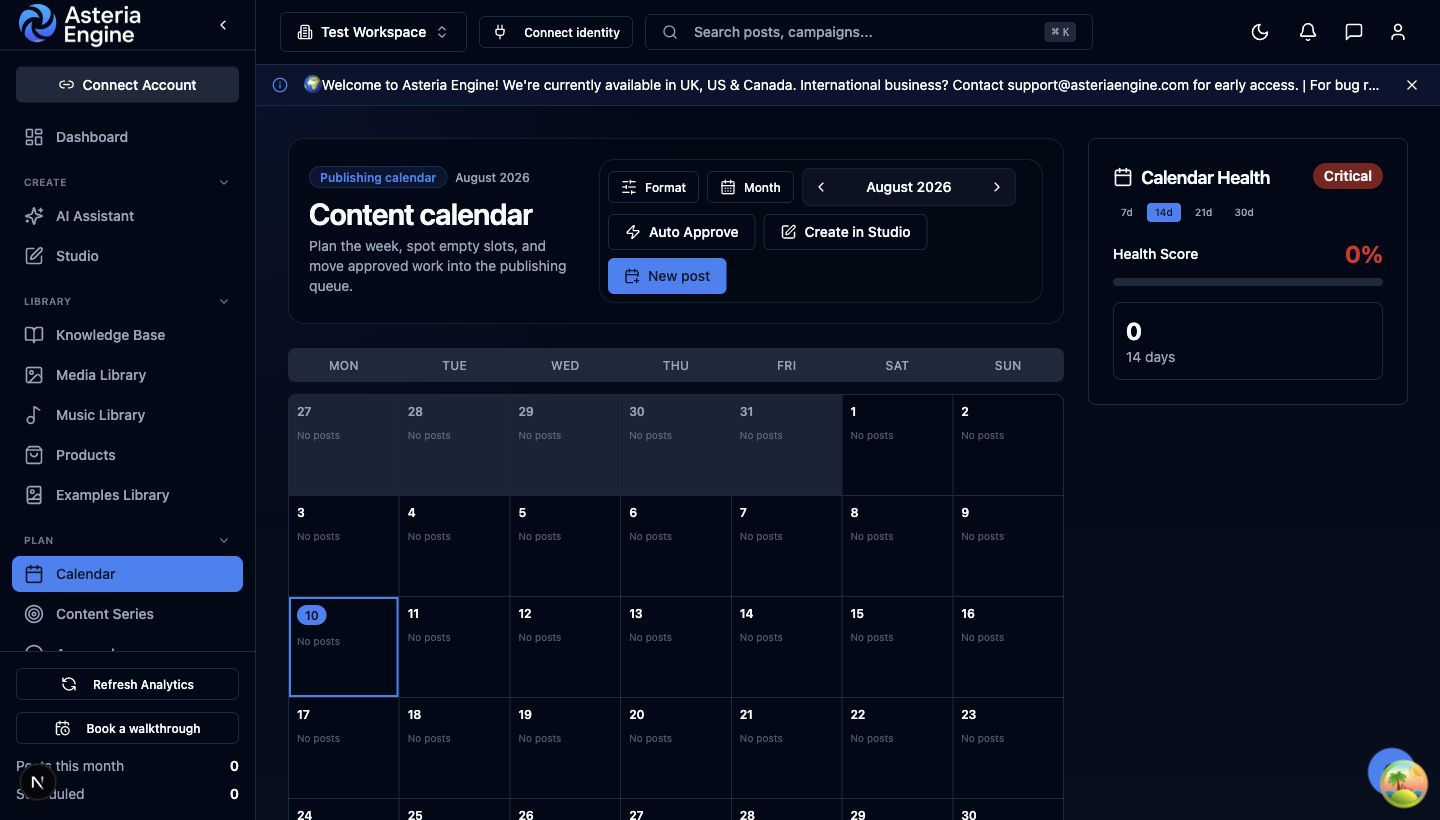 1. Choose the calendar view. 2. Select New post. 3. You can also select an empty date. 4. Use Calendar Health to spot gaps.
Schedule from the calendar
- Click an empty date cell
- Open the post-creation flow with that date prefilled
- create or generate the content
- set the time and save
This is useful when the team already knows the slot that needs filling.
Schedule from a draft
- Open an existing draft
- set the date and time
- save the post
- confirm it now appears on the calendar
This is useful when the content exists already and only needs to be placed into the workflow.
Schedule from Studio
Studio can schedule content directly without returning to the calendar first.
Typical Studio scheduling flow:
- open or create the Studio session
- finish the media and caption work
- use the Schedule control in the Studio action row
- choose Draft or Scheduled
- set the date and time
- create the scheduled post or push the schedule to the linked post
Use this when the content is still being produced and reviewed inside Studio. Use the calendar when the main job is spacing, moving, or reviewing the wider publishing plan.
Timezone discipline
Calendar behaviour depends on the workspace timezone. If the timezone is wrong, the schedule becomes misleading very quickly. Treat timezone setup as a real operating decision, not a minor preference.
Editing and Rescheduling
Edit scheduled content
Click the scheduled post, open the detail view, and make your changes. Use this whenever the caption, media, CTA, or timing needs adjustment before publication.
If the post is still actively being produced, you can also reopen its linked Studio session and change the schedule from there before pushing the saved version back to the post.
Drag-and-drop rescheduling
In views that support it, drag a scheduled post to a different date to move it without rebuilding the post from scratch.
This is especially useful when:
- a campaign priority changes
- a piece of reactive content needs to take an earlier slot
- the week became overloaded and needs spacing out
Unscheduling content
If a post should not go out yet, unschedule it and return it to draft rather than leaving it in the calendar as false certainty.
Content Gap Detection
One of the most useful calendar functions is gap visibility. Many teams do not fail because they have no ideas. They fail because empty days appear unnoticed until consistency breaks.
The gap-detection layer helps you spot:
- days with no scheduled content
- weak stretches in the calendar
- imbalances between channels or campaigns
Why this matters
A weak calendar usually does not announce itself dramatically. It drifts. Gap detection helps you catch that drift before it affects channel consistency.
Auto-fill use case
When appropriate, use the AI workflow to help fill empty periods faster, then review those generated posts before they publish. Speed is useful. Unreviewed automation is not.
Filters and Visibility
Use filters when the calendar gets dense and you need to reduce noise.
Filtering is especially helpful when you want to isolate:
- one content format
- one campaign theme
- one type of workflow issue
- orphaned or ungrouped content
The more channels and campaigns you manage, the more important filtering becomes for staying operationally clear.
Statuses and Workflow Meaning
Status labels are useful because they tell the team not only what exists, but where the content sits in the process.
Typical statuses include:
- Draft
- Scheduled
- Published
- Failed
Where approvals are in use, the team should also think in terms of:
- awaiting review
- approved and ready
- returned for revision
The calendar is most useful when each status reflects the team’s editorial process as well as its publishing time.
Approval-Aware Scheduling
If your workspace uses approvals, use the calendar to manage timing and the approval flow to control whether a post is ready to publish.
A simple pattern is:
- Editor drafts the post
- Manager or Owner reviews it
- approved content moves into scheduled execution
- the calendar reflects the approved publishing plan
This keeps planning and control aligned.
Campaign Organisation
Use campaigns when a group of posts belongs to the same launch, initiative, or thematic push.
Campaign structure helps when you need to:
- review all related posts together
- assess whether a launch was spread properly
- avoid duplicated effort across the calendar
- explain performance later in analytics reviews
Without campaign discipline, the calendar often becomes a flat stream instead of a strategic plan.
Set a Sustainable Publishing Cadence
There is no universal posting frequency that suits every account. Start with a schedule your team can produce and review consistently, then use account-level performance to adjust it.
When choosing a cadence, consider:
- the audience’s response to recent publishing frequency
- the time required to produce each format well
- campaign dates and time-sensitive announcements
- approval capacity and media availability
- whether additional posts improve results or dilute quality
Review the cadence after a meaningful reporting period and change one variable at a time so the effect is easier to understand.
Best Practices
What strong teams do
- plan ahead instead of scheduling reactively every day
- use month view to manage consistency
- use week view to manage execution
- keep approvals tied to real publishing accountability
- review same-day posts every morning
- use analytics to refine cadence rather than guessing
What weakens the workflow
- leaving the calendar empty and filling it only at the last minute
- prioritising publishing volume over content quality
- ignoring failed posts or expired platform connections
- treating campaigns as isolated posts instead of coherent runs of content
Troubleshooting
A post did not publish
Start with the basics:
- confirm the platform connection is still active
- open the failed post and read the error
- check whether the issue is content, connection, or media related
- fix the cause and reschedule deliberately
You cannot schedule a post
Check:
- your role has sufficient permissions
- the connected channel is active
- the scheduled time is valid and in the future
The calendar feels unreliable
If the schedule is hard to trust, the issue is often process rather than interface alone. Review:
- workspace timezone
- approval discipline
- platform connection health
- whether the team is using the calendar as its shared planning record
Recommended Next Steps
The calendar becomes far more valuable when it is used alongside:
- AI Content Generation Guide
- Analytics Guide
- Team Management Guide
- Getting Started Guide
- Studio overview
A strong content system is not only about generating posts. It is about planning, spacing, approving, and learning from them over time.