Overview
WhatsApp Business support in Asteria Engine is built around inbox-first conversations, templates, media, and booking workflows.
It helps businesses respond to customers through WhatsApp while keeping setup, permissions, templates, and human review in one workspace.
What WhatsApp Unlocks
When WhatsApp Business is connected, Asteria can support workflows such as:
- inbound WhatsApp messages in Inbox
- replies inside the customer service window
- initiated messages where template rules allow it
- WhatsApp templates
- images, documents, and voice note handling
- appointment and booking confirmation flows
- inbox automation and concierge-style responses where configured
Exact capability depends on WhatsApp Cloud API permissions, template approval, the connected number, and Meta account state.
Connect WhatsApp Business
Guided setup uses Meta Embedded Signup. Select the business and WhatsApp number in Meta, then return to Asteria Engine to complete the connection.
If guided setup does not complete, retry the connection or contact Asteria Engine support. Never send access tokens, passwords, or two-step verification codes by email or chat.
Two-Step Verification
Meta may request the WhatsApp number's two-step verification PIN during connection. Enter the PIN associated with that specific number when prompted. If registration does not complete, verify the number and PIN in Meta before retrying. Never send the PIN to Asteria Engine support.
Inbound Messages
Messages sent to a connected WhatsApp Business number appear under the WhatsApp channel in Inbox. If new messages do not appear after a successful connection, confirm that the correct number is connected, retry the connection, and contact Asteria Engine support if the problem continues.
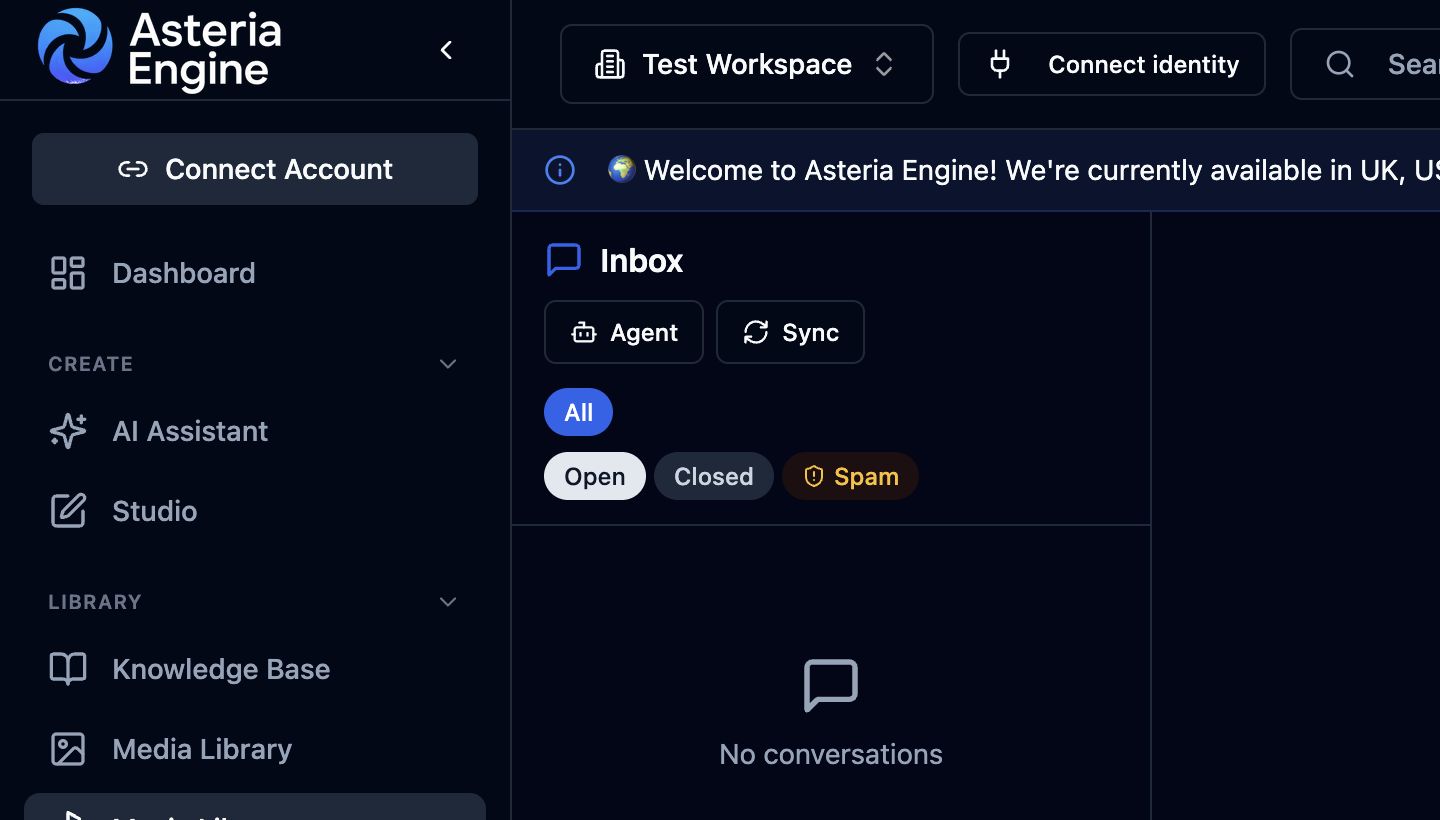 1. Sync connected channels to retrieve new messages. 2. Use Open, Closed, and Spam to locate the conversation.
Initiating WhatsApp Messages
WhatsApp has stricter rules than normal social DMs.
Users can initiate a message from Asteria only where WhatsApp policy and templates allow it. In practice, this usually means:
- free-form replies are allowed inside the open customer service window
- template messages are required outside that window
- templates must be approved before they can be used for production messaging
Templates
Templates are used for structured messages such as:
- booking confirmations
- appointment reminders
- follow-up messages
- service updates
- approved marketing or utility messages where permitted
Create and manage approved templates from the WhatsApp settings area. Template availability and allowed categories depend on Meta approval and the connected WhatsApp Business account.
Media Handling
WhatsApp Inbox supports:
- image download and rendering
- document download and rendering
- voice note download and playback
Supported media appears in the conversation so the team can review what the customer sent before replying or assigning the conversation.
Booking Confirmations
For appointment-led businesses with booking integrations configured, Asteria can:
- identify booking intent in the WhatsApp conversation
- confirm availability through the connected booking/calendar workflow
- create the calendar event
- send a WhatsApp confirmation using the correct reply or template path
- keep the conversation visible in Inbox
Disconnect and Retry
Retry setup when a connection does not fully complete. You can also disconnect WhatsApp when the business changes number, changes provider, or needs to remove the account from Asteria.
Related Guides
- Inbox & Engagement Guide
- Lead Nurture Guide
- Team Management Guide
- Platform-Specific Issues