What the Inbox is for
Use Inbox to read and reply to conversations from your connected channels without moving between separate social apps. You can filter conversations, ask Asteria Engine to suggest a reply, hand a conversation to a teammate, close completed threads, and move suspicious messages to Spam.
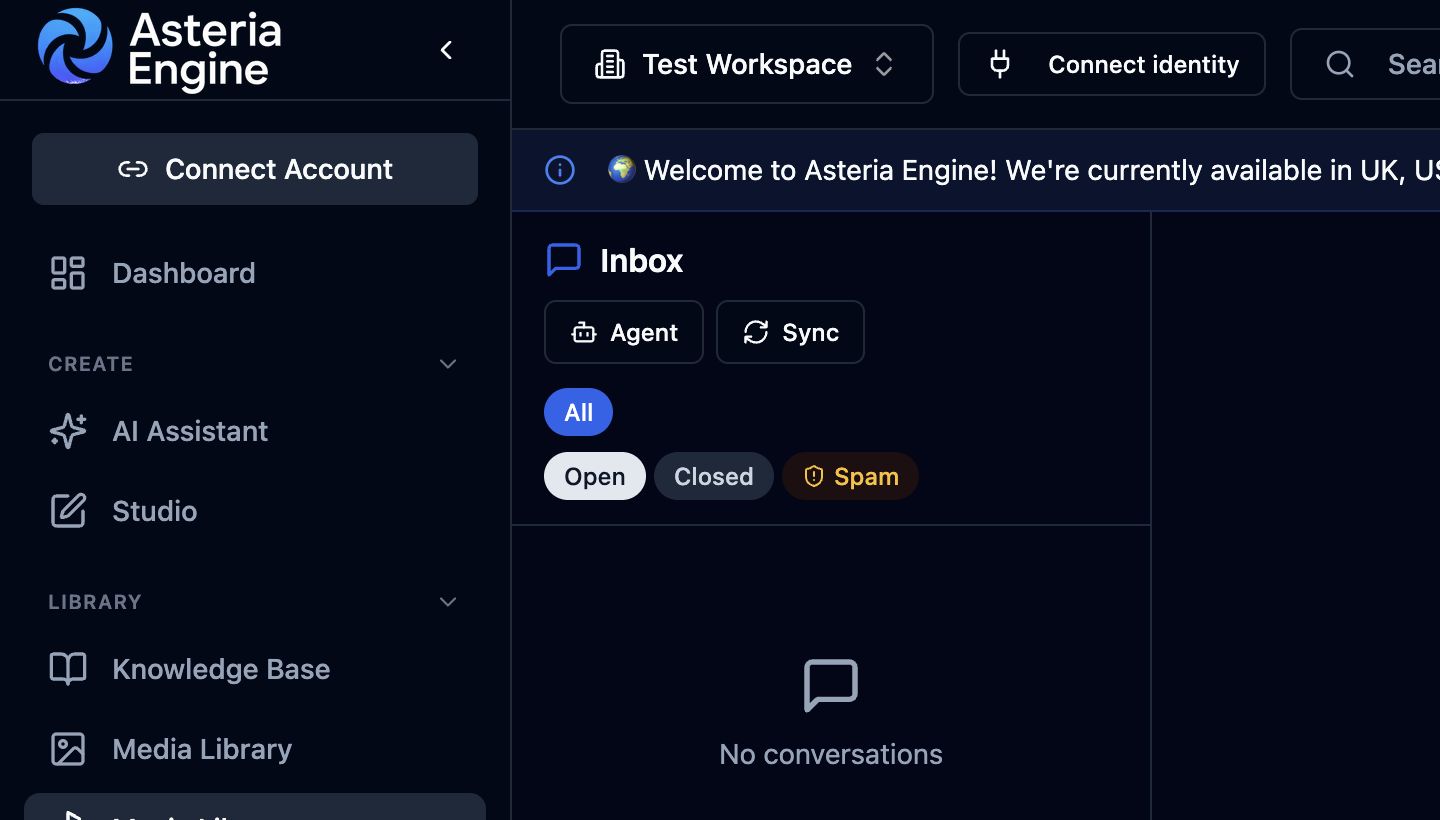 1. Open Inbox under Engage. 2. Sync connected channels when needed. 3. Filter conversations by Open, Closed, or Spam.
Before you begin
Make sure the channel you want to manage is connected to the active workspace. If a channel is missing, open Settings > Platform Accounts and check its connection and page assignment.
The actions available in Inbox vary by platform. Each platform's reply windows and messaging restrictions still apply.
Find a conversation
- Open Inbox under Engage.
- Select a platform filter, or leave All selected.
- Choose Open, Closed, or Spam.
- Select a conversation to open its message history.
- If older messages are not visible, select Load earlier messages.
Select Sync when you need to import recent message history from connected accounts. Syncing does not create new messages or send replies.
Reply to a customer
- Open the conversation.
- Read the latest message and the earlier context.
- Write your response in the reply box, or use the reply-suggestion action to create a draft.
- Edit the draft so it is accurate, appropriate, and written in your brand voice.
- Send the reply.
Always check prices, dates, availability, links, promises, and customer-specific details before sending an AI-assisted reply.
Reply windows
Some platforms allow replies only for a limited period after the customer’s last message. Inbox shows a warning when the normal reply window has closed.
- If a human-agent window is still available, a teammate may still be able to reply.
- If the reply window is fully closed, continue the conversation through the option permitted by that platform.
- For WhatsApp, you may need to send an approved template before continuing.
- X messages are currently read-only in Inbox. Use the link to
x.com/messagesto reply directly on X.
Take over from the agent
Select Take over when a person should handle the conversation. This is useful for complaints, sensitive questions, unusual requests, or valuable sales conversations.
When the human conversation is complete, select Hand back to agent if you want the engagement agent to resume handling that thread.
Open Agent to review the engagement-agent settings available to your workspace. Keep automatic behaviour conservative until your brand context, Knowledge Base, and escalation process have been tested.
Close or reopen a conversation
Select Close when no further action is needed. Closed conversations remain available under the Closed filter.
Select Reopen if the conversation needs more work.
Remove only removes the Inbox copy from Asteria Engine. It does not delete the original messages from the social platform.
Handle spam and suspicious messages
Move a conversation to Spam when it contains phishing, impersonation, unwanted promotion, or another clear security risk. While a conversation is marked as spam, Asteria Engine does not generate or send replies from that thread.
Warning signs include:
- urgent claims that your account will be suspended
- requests to open an unexpected attachment
- links that do not use the platform’s official domain
- unexpected requests for passwords, verification codes, or payment
- messages claiming to sell verification or remove an account restriction
Do not click suspicious links or download unexpected attachments. Verify account warnings inside the provider’s official app or website.
If a genuine customer was moved to Spam by mistake, open the conversation and select Not spam.
Review attachments
Open an attachment only when you recognise the sender and the file is relevant to the conversation. Supported images can provide additional context for reply suggestions, but you should still inspect the attachment yourself before responding.
Do not upload or repeat sensitive information from a customer attachment unless it is necessary and permitted by your privacy process.
Book a meeting from WhatsApp
When WhatsApp and a supported calendar are configured, select Book in an eligible WhatsApp conversation.
- Confirm the customer and meeting details.
- Choose an available date and time.
- Review the timezone.
- Create the booking.
- Confirm that the appointment appears under Bookings.
If calendar booking is unavailable, collect only the contact details your team needs and follow up through your usual process.
Troubleshooting
A conversation is missing
- Confirm the correct workspace is selected.
- Check the platform and status filters.
- Select Sync.
- Confirm the channel is active under Settings > Platform Accounts.
You cannot send a reply
Check the reply-window message shown in the conversation. If the window is closed, use an approved WhatsApp template where available or reply in the platform's own application.
A reply suggestion is not suitable
Do not send it. Edit the reply manually, check the Brand Voice and Knowledge Base, or select Take over so a teammate handles the conversation.
Inbox shows a security warning
Pause before replying. Check the sender, links, attachments, and message history. Move the thread to Spam when it is clearly unsafe; otherwise take over and review it manually.