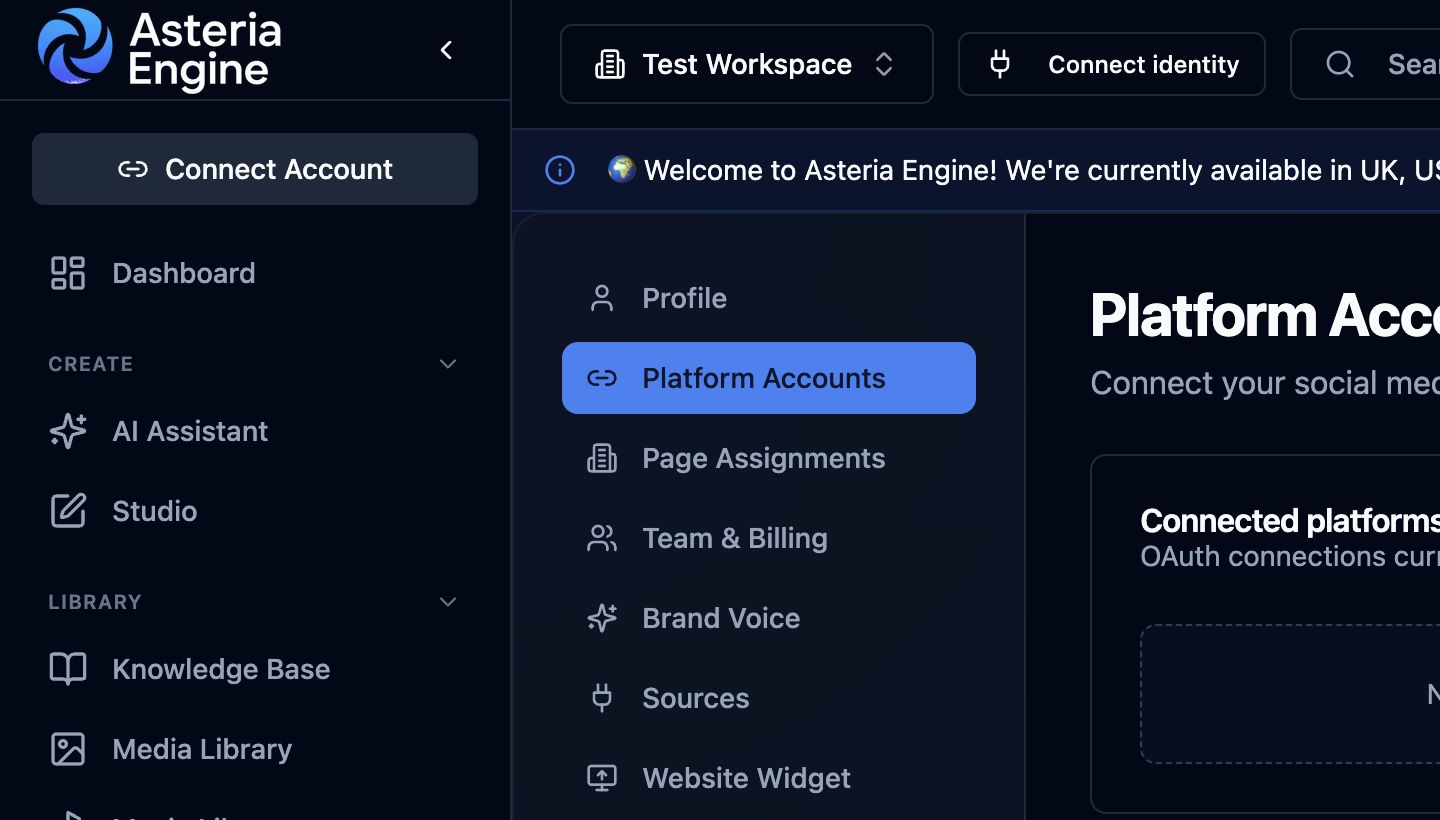
 For authentication and permission errors, begin in Platform Accounts and check the affected connection.
Start with the action that failed
An error message tells you that Asteria Engine could not complete an action such as connecting an account, publishing a post, uploading media, or loading analytics. The quickest fix is to identify which action failed and follow the relevant section below.
Keep the complete message visible or take a screenshot before dismissing it.
Identify the type of problem
Most errors fall into one of these groups:
- connection or authentication failure
- permissions failure
- content rejection
- media validation failure
- rate or quota limitation
- schedule or timing problem
- account, role, or workspace access problem
- temporary service or platform issue
Choose the closest match, then try the recommended steps once.
Connection and Authentication Errors
Platform connection expired
This usually means the external platform token or permission state needs to be refreshed.
Typical response:
- open Settings > Platform Accounts
- reconnect the affected platform
- retry the action after the connection is healthy again
Could not connect to platform
This usually means one of three things:
- the platform itself is unavailable or slow
- the authorisation state is broken
- the connection could not complete
Check the platform connection before changing the post itself.
Permissions Errors
Permission denied
This generally means the connected account does not have the required authority for the action.
Possible causes include:
- the wrong account was used for the connection
- the page or channel access level is too weak
- permissions changed after the original connection
- the platform itself restricted access
Review the connected account authority and reconnect with the required permissions before retrying.
Insufficient permissions in the workspace
This means your current workspace role does not allow the action.
Check whether the user is:
- in the right workspace
- using the right account
- assigned the right role for the action they are trying to perform
For the role model, see the Team Management Guide.
Publishing Errors
Post failed to publish
Open the failed post and read the detailed message to identify whether the problem is the connection, content, media, timing, or destination platform.
Common root causes:
- expired connection
- platform-side rejection
- media issue
- invalid timing or state
- native platform limitation
Use this sequence:
- open the failed post
- read the detailed message if available
- identify whether the issue is connection, content, media, or platform state
- fix the cause
- reschedule deliberately
Content not allowed
This usually means the destination platform rejected the content rather than the workflow failing generically.
Possible causes include:
- policy-sensitive wording
- platform moderation triggers
- unsupported formatting
- suspicious or blocked links
- asset issues with copyrighted or restricted material
When this happens repeatedly on one network, treat it as a platform fit issue rather than only an app error.
Media Errors
Media file too large
This means the asset exceeded the practical limit for the workflow or the destination platform.
The fix is usually straightforward:
- reduce file size
- re-export in a cleaner format
- shorten or simplify the asset where appropriate
Invalid media format
This indicates the file type or structure is not acceptable for the target workflow.
Check:
- file extension
- codec or export format where relevant
- whether the destination platform has stricter requirements than the general library does
Media attached but publish still fails
This often means the issue is not “a file exists” but “the file is not suitable for that platform.” Think about aspect ratio, duration, upload state, and channel-specific expectations.
Rate and Quota Errors
Rate limit exceeded
This means the destination platform is temporarily limiting how quickly actions can be processed.
The fix is not to keep retrying rapidly.
Instead:
- slow down the retry pattern
- wait for the limit window to recover
- review whether the workflow is pushing too much volume too quickly
- consider whether the channel is worth deeper operational investment if this happens repeatedly
Quota-style limits
Some platforms also apply daily or account-level limits. If waiting does not resolve the problem, check the connected provider plan and account access.
Schedule and Timing Errors
Cannot schedule in the past
This is usually a timezone or timing issue, not a platform issue.
Check:
- workspace timezone
- selected publish date
- whether the selected time is already gone in the current timezone context
Minimum schedule window not met
Some actions require a small buffer between “now” and the scheduled time. If the schedule is too close to the current time, push it forward and try again.
Workspace and Account Errors
Workspace not found
This usually means:
- the workspace no longer exists
- the user lost access
- the request is pointing at the wrong workspace context
Verify workspace selection before assuming broader system failure.
Subscription or payment-related access problems
If a feature is unavailable, check the workspace plan and billing status.
Review:
- the current workspace plan
- whether billing is current
- whether the feature is truly included in the plan you expect
Unexpected or Generic Errors
Something went wrong
This means Asteria Engine could not show a more specific reason for the failure.
When you see a generic error:
- note what you were doing
- capture the full message or screenshot
- check whether the problem is reproducible
- identify the category of action involved
- contact support with the details listed below
Temporary service issues
Sometimes a connected platform or service is temporarily unavailable.
Clues include:
- multiple unrelated actions failing at once
- one platform behaving badly across several workflows
- errors that disappear once the dependency recovers
Do not confuse a temporary outage with a permissions problem or a content problem.
Contact support
When you report an error, include:
- the exact message
- what you were trying to do
- which platform or page was involved
- whether it happens every time or only once
- the workspace name
- a screenshot if useful
These details help support identify the failed action quickly.
For general triage, also use the Common Issues & Troubleshooting Guide.
Recommended Next Steps
Pair this guide with:
- Platform-Specific Issues Guide
- Common Issues & Troubleshooting Guide
- Security Guide
- Team Management Guide
You do not need to diagnose the underlying technology. Identify the action that failed, try the relevant customer-facing fix, and send the complete context to support if the problem continues.