Overview
Start troubleshooting by identifying the failed action and its likely cause. Many common issues fall into one of these groups:
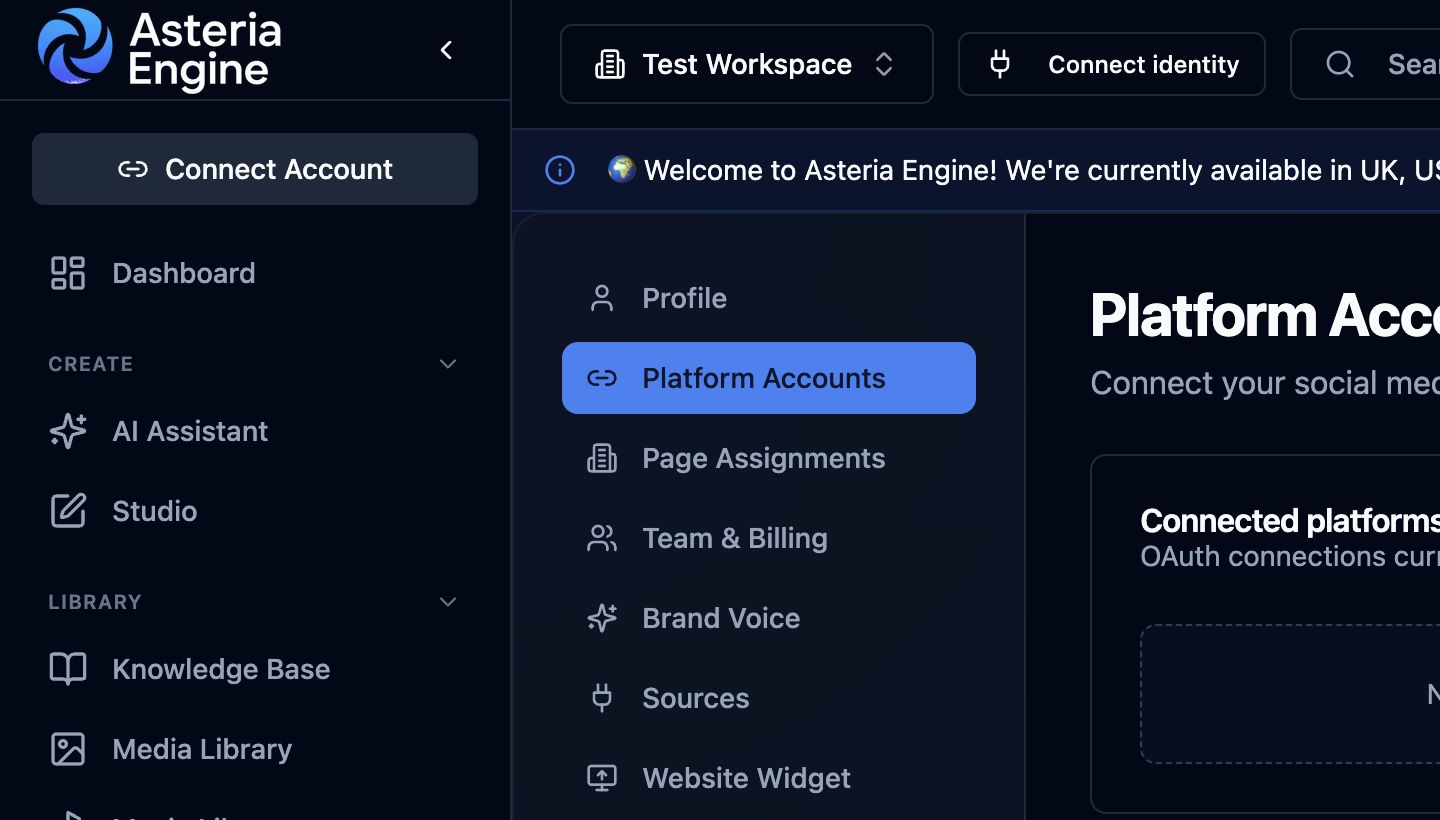 For connection and publishing problems, first check the affected channel under Platform Accounts.
- expired social-platform connections
- browser cache or session issues
- role or permission mismatch
- unsupported media or an incomplete upload
- expectations that do not match the actual workflow
This guide gives you a practical sequence for diagnosing the most common issues without turning every problem into a support escalation.
First Triage: What Kind of Problem Is It?
Before diving into a fix, decide which category the issue belongs to:
- sign-in or account access
- social-platform connection
- publishing or scheduling
- content generation
- analytics or reporting
- billing or plan access
- permissions and team access
- browser or device behaviour
Choosing the closest category will help you reach the relevant checks more quickly.
Account and Login Issues
You cannot log in
Start with the simplest checks:
- confirm the email address is correct
- confirm the password is correct
- check for Caps Lock or autofill mistakes
- try password reset if needed
- retry in a fresh browser session if the state feels stale
If login continues to fail, treat it as an account-access problem rather than a browser-only problem.
Password reset is not arriving
Check:
- spam or junk folders
- whether you are using the correct account email
- whether you requested multiple resets too quickly
If the reset still does not appear, move to support rather than repeating the same request indefinitely.
Verification email issues
If verification messages are missing:
- recheck the address used during sign-up
- inspect spam or junk folders
- add the sender domain to safe contacts if necessary
- request a new verification email
Social Platform Connection Problems
A platform will not connect
Most connection failures come down to one of these causes:
- you do not have the right platform permissions
- the account type is wrong for the integration
- the browser session is conflicted
- the platform itself is restricting or rejecting the connection
Fast checks by platform type
- confirm you have the right page-level admin access
- reconnect with the account that actually controls the page
Facebook / Instagram
- confirm page access is correct
- confirm the Instagram account is properly linked to the page where required
- retry in a clean browser session if Meta authorisation behaves inconsistently
X
- confirm the relevant API or account-access requirement is in place
- verify the account is in good standing
TikTok
- confirm the account type and any external approval requirements are met
- treat TikTok issues as partly platform-governed, not purely app-governed
YouTube
- confirm you are authorising the correct Google account and the correct channel context
A connection keeps expiring or disconnecting
This usually indicates one of the following:
- the platform token expired normally
- the connected app permissions changed
- the social account password or security settings changed
- the app was revoked natively on the platform side
When in doubt:
- reconnect cleanly
- verify permissions again
- check the native platform app-access settings
Publishing and Scheduling Issues
A post failed to publish
Treat the error message as a clue, not decoration. The most common causes are:
- connection expired
- content rejected by the platform
- media failed validation
- the platform itself had a temporary issue
Practical troubleshooting sequence
- open the failed post
- read the exact error shown
- confirm the platform is still connected
- confirm the media and content still meet the platform’s requirements
- edit or reconnect as needed
- reschedule deliberately
A scheduled post never went out
Check:
- whether the post is still marked scheduled
- whether the time was set correctly
- whether the platform remained connected at publish time
- whether the workspace timezone is correct
If the timezone is wrong, the schedule may look correct at first glance while still being operationally misleading.
Content and Media Issues
You cannot create or edit a post
Check:
- whether your role includes the necessary permissions
- whether the browser session is stale
- whether the workspace is the correct one
Media upload problems
Common causes:
- unsupported format
- bad file state or corruption
- file too large for a practical upload
- weak connection during transfer
Practical fixes:
- confirm the format is supported
- retry with a smaller or cleaner file
- try again in a fresh session if the upload froze
- upload one file at a time if batch behaviour seems unstable
AI content output feels wrong
This is often not a system failure. It is usually an input-quality problem.
Check:
- whether brand settings are complete
- whether example posts are strong enough
- whether the prompt was too vague
- whether the requested outcome was unrealistic or underspecified
For AI-specific workflow guidance, see the AI Content Generation Guide.
Analytics Issues
Analytics are missing or incomplete
The first checks are:
- the platform is still connected
- enough time has passed for the data to sync
- the account type on the native platform actually exposes that metric
Do not assume “no data” always means a platform bug. Sometimes the data is delayed, restricted, or not available for that account type.
Numbers differ from the native platform
Small discrepancies are normal because of:
- timing differences
- timezone differences
- different metric definitions
- delayed native platform updates
Use analytics directionally. Focus on trends and comparative changes rather than treating perfect parity as the only valid outcome.
Billing and Plan Issues
Payment failed
Typical causes:
- card expired
- insufficient funds
- bank decline
- billing-details mismatch
Handle this as a billing issue, not a product issue. Update the payment method first, then retry.
Plan access does not match expectation
Check:
- whether the workspace is on the plan you think it is
- whether an upgrade, downgrade, or failed payment changed access
- whether the feature in question is tied to role, plan, or workflow state
A plan issue and a permissions issue can look similar, so separate them clearly.
Team and Permissions Issues
A team member cannot do what they expect
Check three things in order:
- are they in the right workspace?
- have they accepted the invitation fully?
- does their role actually include that capability?
You cannot invite a new member
Possible reasons include:
- the workspace seat limit is already reached
- the current user is not the Owner
- the email is already invited or already present in the workspace
A stakeholder can see too much or too little
That is usually a role-assignment problem, not a bug. Revisit whether they should be Viewer, Editor, Manager, or Owner.
For the full permissions model, see the Team Management Guide.
Browser and Device Problems
The interface feels broken or stale
Try these in order:
- hard refresh the page
- clear relevant cache or site data
- retry in an incognito/private window
- disable extensions that may interfere
- try another supported browser
The product feels slow
Performance issues may come from:
- too many heavy tabs open
- browser extension interference
- stale local browser state
- temporary network instability
If the problem is isolated to one device or one browser profile, that is useful evidence in itself.
Before You Contact Support
Come with useful information. Good support requests get resolved faster because they are diagnosable.
Include:
- what you were trying to do
- what happened instead
- the exact error message if there is one
- the workspace name
- the affected platform or page
- screenshots where useful
- whether the issue is reproducible
That level of detail shortens the path to a real fix.
When to Escalate Immediately
Escalate faster if:
- you suspect a security issue
- posts are publishing unexpectedly
- a connected channel looks compromised
- billing or access changed unexpectedly and affects operations
- a high-priority scheduled workflow is blocked and the cause is unclear
Use the public Contact route when escalation is necessary.
Recommended Next Steps
For more specific issue resolution, pair this guide with:
Identify the category, complete the relevant checks once, and contact support when the documented recovery steps do not resolve the issue.