Overview
The Media Library is the asset layer behind your publishing workflow in Asteria Engine. It stores the images and videos you upload yourself, as well as media created through the platform, so your team can reuse approved assets without digging through external folders or chat threads.
For serious social teams, this matters because publishing quality is not only about captions. It is also about whether assets are accessible, reusable, and correctly sized for the channel they are going to.
What the Media Library is for
Use the Media Library when you need to:
- upload images and videos once and reuse them later
- keep workspace assets in one place instead of scattered across drives
- attach saved media to posts during scheduling
- keep AI-generated media available after it is created
- filter assets quickly when the library grows
It is a practical workspace asset store, not a full digital asset management suite. Treat it as the part of Asteria that supports day-to-day post creation and scheduling.
Accessing the Library
Go to Media Library in the main navigation.
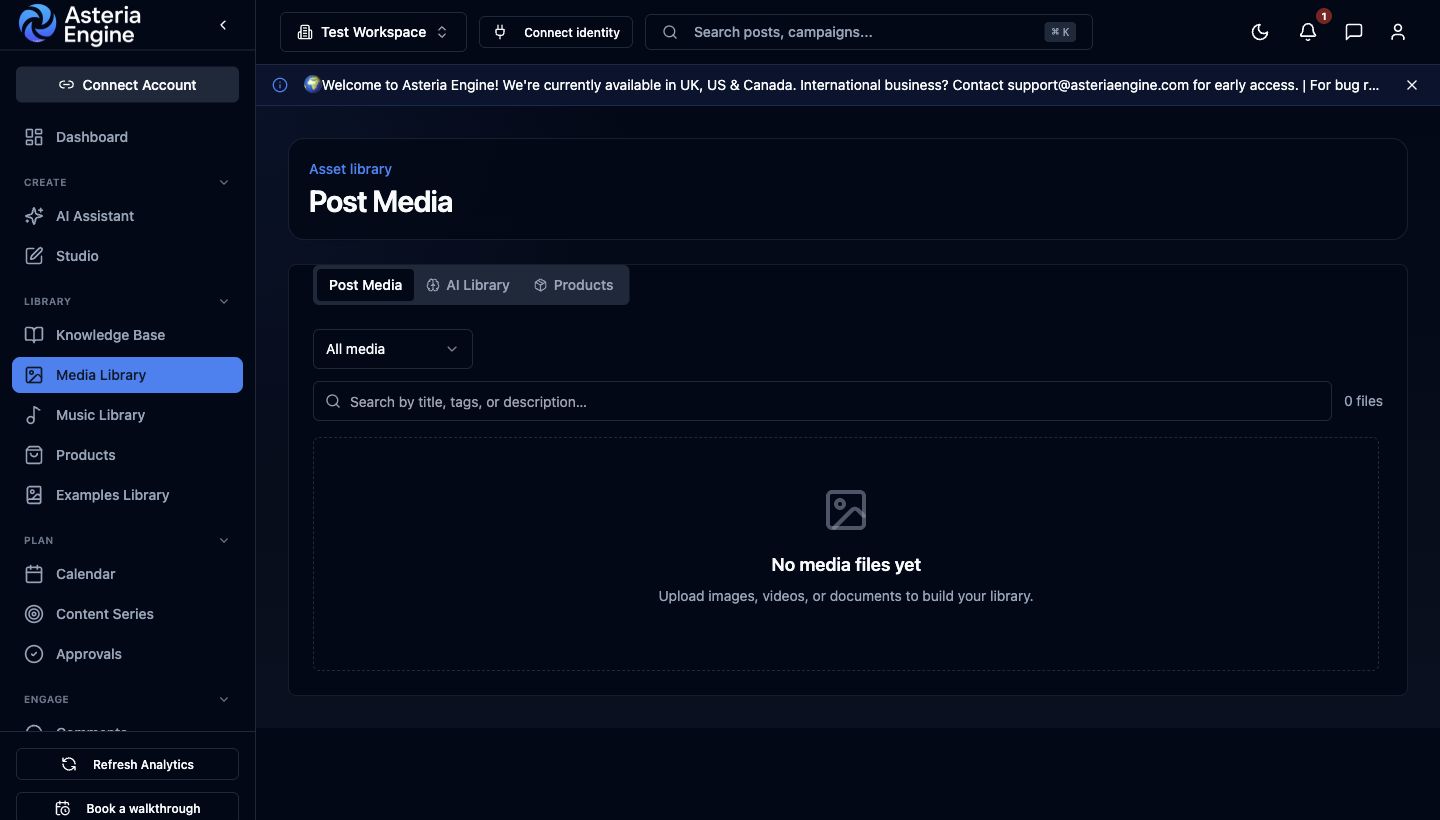 1. Open Media Library. 2. Choose AI Library to upload or reuse workspace assets.
The library view is workspace-specific. If you switch workspaces, you are looking at a different asset set. This matters for agencies and multi-brand teams because each workspace should keep its own operating context.
What you will find there
A typical workspace library can contain:
- manually uploaded images
- manually uploaded videos
- AI-generated images created during content generation
- AI-generated videos where supported in your workflow
- thumbnails and cover assets used by video content
That means the library grows over time as your team publishes more often. Review it periodically rather than treating it as a write-only upload area.
Uploading Media
Supported file types
Asteria currently accepts these common formats:
- Images: JPG, PNG, WebP, GIF
- Videos: MP4, MOV, WebM
If a file fails to upload, start by checking the format and file size, then confirm your connection is stable.
Upload workflow
- Go to Media Library
- Open the AI Library tab and click Upload Media
- Select one or more files
- Wait for the upload to complete
- Confirm the asset appears in the workspace library
When to upload directly
Upload media directly when:
- you already have approved brand photography
- you need product shots or screenshots available to the team
- you are preparing assets for scheduled campaigns
- you want to reuse visuals across multiple posts
If a visual only belongs to one post and will never be reused, it can still be attached in the post flow. But reusable brand assets are usually better kept in the library.
Using Library Assets in Posts
When creating or editing a post:
- open the post editor
- choose Add Media
- browse the existing library or upload a fresh file
- attach the selected asset to the post
This is one of the main operational benefits of the Media Library. Your team does not need to re-upload the same files over and over if they are already stored in the workspace.
Using library and stock assets inside Studio
Studio can add assets from the same library and stock-image workflow without leaving the session.
Typical Studio asset flow:
- open the Media workspace
- click Add assets
- choose library assets or stock results
- add them to the current Studio canvas
- select the imported asset and continue the Studio workflow
This keeps asset selection and Studio editing in one workflow.
Good practice for agencies and multi-brand teams
If you manage several clients, keep client-specific assets in the correct workspace and avoid cross-posting assets between brands without review. The library is only useful as an operational system if the asset context stays clean.
Tags and Filtering
Tag filtering
If an asset includes tags, the library can surface a tag cloud beneath the search area. Selecting a tag filters the results to matching assets.
This becomes more useful as the workspace grows. Early on, you may barely notice it. Later, it can save significant time when you need to find a previously used visual quickly.
How tags are created
Tags can be added when media is uploaded or when AI-generated images are stored with descriptive context. The important point is not the tagging method. It is that tags improve retrieval inside a real operating workflow.
When filtering matters most
Tag-based filtering is most valuable when:
- the same workspace manages many campaigns
- you reuse assets by topic or product line
- different team members need to find approved visuals quickly
- the library contains both uploaded and AI-generated assets
Stock Images in the Workflow
Asteria supports a stock-image search flow powered by Unsplash so teams can source suitable visual material without leaving the platform.
Typical stock-image flow
- start from the media selection flow in the post composer
- choose the stock image option
- search by topic or concept
- review the results
- select the image you want to use in the post
When stock assets make sense
Stock photography is useful when:
- you need a clean visual for a concept post
- you do not have proprietary photography for the topic
- speed matters more than custom design
- the post is informational rather than product-specific
When not to rely on stock
Do not lean too heavily on stock imagery when:
- the post is meant to prove real operational credibility
- the brand depends on recognisable proprietary visuals
- you are publishing case-study, team, or product-led content
The strongest social output often mixes original assets, AI-assisted visuals, and occasional stock support rather than defaulting to stock for everything.
AI-Generated Media
When Asteria generates visual assets as part of content creation, those assets are saved to the workspace library automatically.
This has a few practical advantages:
- you can reuse strong visuals later
- your team can review what has already been generated
- the workspace develops a usable visual history over time
- you avoid losing assets that were originally created for a single post
That is particularly valuable when teams iterate on campaign themes or want to compare which visual direction performed better later.
Image Resize Support
Asteria includes image resizing support so assets can be prepared for platform-specific dimensions without leaving the workflow.
Typical preset use cases
| Preset | Typical use |
|---|---|
| Instagram Square | Standard feed post |
| Instagram Portrait | Taller feed creative |
| Instagram Story / Reel | Vertical mobile-first content |
| LinkedIn Post | Landscape business content |
| Facebook Post | Standard Facebook feed visual |
| X Post | In-stream image post |
| YouTube Thumbnail | Video thumbnail workflow |
| TikTok Video | Vertical short-form content |
Fit modes
The resize flow supports different behaviours depending on the image:
- Cover: fills the target frame and crops edges where necessary
- Contain: fits the full image inside the frame, leaving space if needed
- Stretch: forces the asset to the target dimensions
In practice, Cover is usually best for social publishing because it keeps the visual feeling intentional rather than padded.
Why this matters operationally
Resize support reduces avoidable publishing friction. It is easier to move quickly when the team is not constantly leaving the platform to fix dimensions in external tools.
Recommended Dimensions Reference
Use these dimensions when preparing your own source files:
| Platform | Format | Recommended size |
|---|---|---|
| Post image | 1200 × 627 px | |
| Feed post | 1200 × 630 px | |
| Square | 1080 × 1080 px | |
| Portrait | 1080 × 1350 px | |
| Reels / Stories | 1080 × 1920 px | |
| X | In-stream image | 1200 × 675 px |
| TikTok | Vertical video | 1080 × 1920 px |
| YouTube | Thumbnail | 1280 × 720 px |
Well-sized source files reduce surprises later, especially when campaigns reuse the same assets across multiple channels.
Good Media-Library Discipline
What strong teams do
Teams that get the most value from the library usually:
- upload reusable brand assets early
- remove throwaway test files periodically
- review whether visuals are still current before reuse
- keep workspace boundaries clean for agencies and multi-brand setups
- pair strong media with clear naming and tagging habits where possible
What weakens the library over time
The library becomes less useful when:
- every post uses one-off uploads that are never reviewed again
- old assets are left in place without any discipline
- teams rely entirely on ad hoc desktop folders instead of shared workspace assets
- brand-critical visuals are mixed with disposable experiments without any filter habit
Troubleshooting
Upload failed
Check the following first:
- the file type is supported
- the file is not corrupted
- your internet connection is stable
- the upload did not time out
You cannot find an asset
Work through this sequence:
- confirm you are in the correct workspace
- search or filter the library if tags are available
- check whether the file was deleted
- verify that the upload completed successfully in the first place
An asset looks wrong on-platform
If a visual appears cropped or oddly framed after publishing:
- confirm the original aspect ratio was sensible for the target channel
- use a platform-specific preset where appropriate
- review whether
Cover,Contain, orStretchwas the right fit mode
Recommended Next Steps
Once the Media Library is in regular use, pair it with these guides:
- AI Content Generation Guide
- Content Calendar Guide
- Studio overview
- Facebook & Instagram Setup Guide
- Example Posts Guide
That combination usually gives teams a stronger content workflow than treating media, captions, and scheduling as separate systems.