Overview
Asteria Engine Studio is the dedicated production workspace for turning one post idea into a complete, reviewable content package.
Studio keeps the brief, story angle, content pillar, media prompt, generated asset, caption draft, and workflow actions connected inside one session.
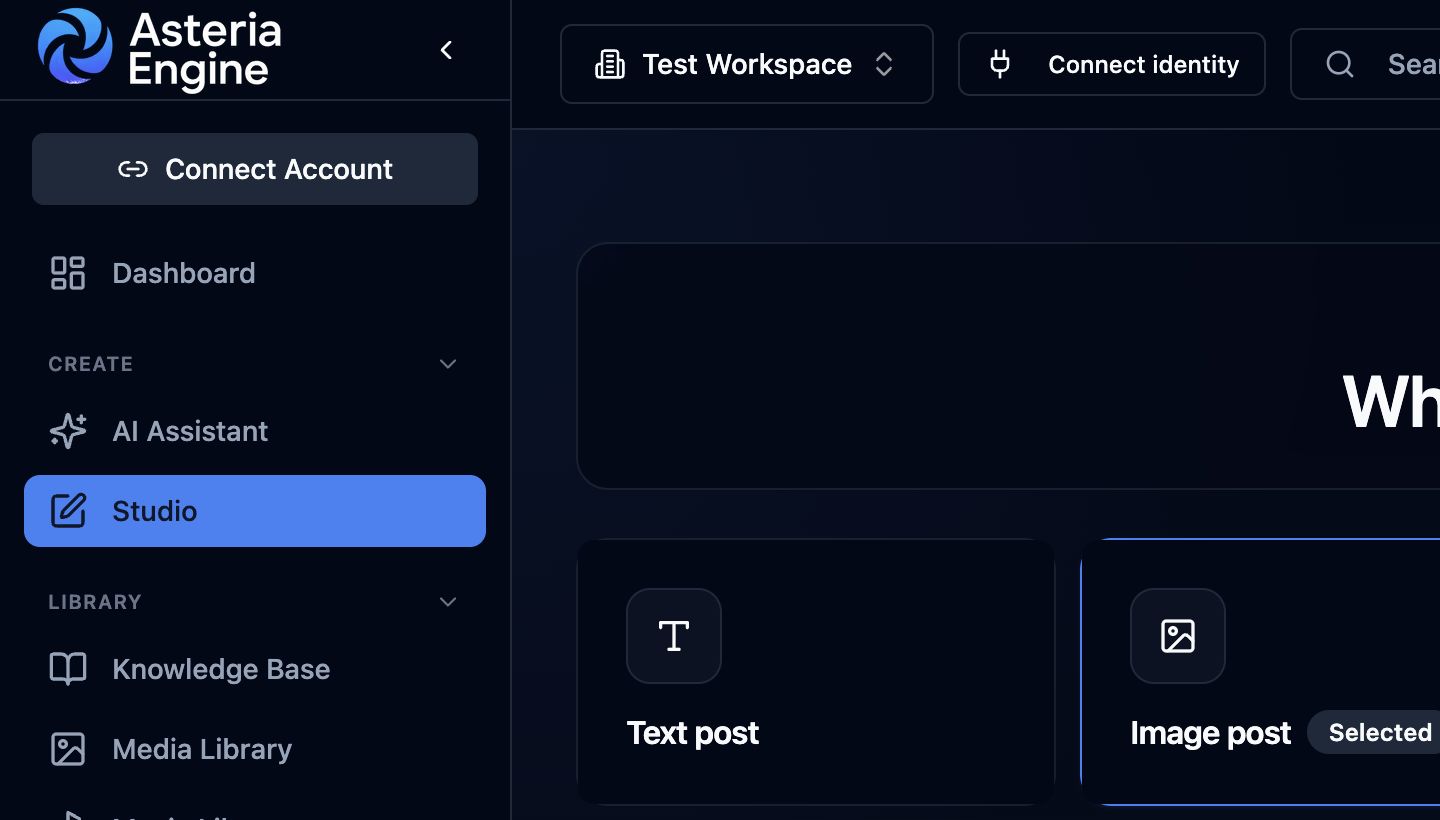 1. Open Studio. 2. Choose the required post format. 3. Continue into the Studio session to build the asset and caption together.
That matters because most social content breaks down when those pieces drift across too many tools or too many people without a stable working context.
What Studio Is For
Use Studio when the team needs to:
- generate or refine the main asset for a post
- draft or rewrite the caption in the same workflow
- keep platform settings tied to the generation path
- compare multiple creative directions without losing the brief
- prepare a clean saved version before pushing back to the linked post
Use Studio when you need to develop and review a complete content package in one production workflow.
What Lives Inside a Studio Session
A Studio session usually includes:
- the current brief
- the chosen platform and account context
- the selected format such as image, video, carousel, or document
- the media workspace with the active asset on canvas
- the floating prompt drawer for media generation or replacement
- the caption canvas with editable draft and hashtag fields
- workflow tools such as research, write, predict, and media
- saved suggestions and prior runs
- linked-post actions such as approve, reject, move to review, post now, duplicate, or delete
This lets you move from brief to usable package without repeatedly rebuilding context.
The Core Working Path
A practical Studio workflow usually looks like this:
- open the linked post or create a Studio-first post
- choose or refine the brief
- set the pillar and story angle
- refine the media prompt or run the media designer
- generate the asset
- refine the caption
- review suggestions, research, and platform preview
- schedule from Studio or save a checkpoint
- push the saved version back to the linked post when needed
If you skip the brief and strategy layer, Studio can still work, but the output usually becomes more generic.
What Makes Studio Different From a Caption Generator
A caption generator helps with one text task.
Studio handles the relationship between:
- asset direction
- caption direction
- platform constraints
- brand controls
- workflow actions
- scheduling state
- linked-post lifecycle
- final packaging
This gives agencies, founder-led brands, and in-house teams a structured way to manage production decisions.
Formats Supported in Studio
Studio can work with several target media types:
- image
- video
- carousel
- document
When you change the output format, Studio keeps the brief and production context available for the next version.
Document sessions have a stricter publishing rule than the other formats: at the moment, document publishing is supported for LinkedIn only.
How Studio Fits the Wider Platform
Studio sits inside the broader Asteria Engine workflow.
Typical surrounding pieces include:
- example posts and brand settings for quality control
- platform account settings for dimensions and generation defaults
- approvals and saved versions for governance
- analytics and calendar views for post-launch decisions
Studio can also pull assets from the workspace library or stock-image flow without leaving the session.
Studio is where content gets produced. The wider platform is where that content gets organised, scheduled, approved, and measured.
When to Use Studio
Studio is the right place to work when:
- a post needs media generation or media replacement
- the caption needs a serious rewrite, not a small edit
- the team wants to use research or workflow suggestions before publishing
- the format choice is still being explored
- the post needs to become more strategic before it becomes publishable
If all you need is a tiny text tweak, the broader post editor may be enough.
Studio Behaviours
- Newest media becomes active after generation or asset import so you can review the latest result immediately.
- Preview follows the selected platform account so a LinkedIn, Facebook, Instagram, or other supported preview reflects the current target.
- Caption rewrite can use a chosen text model when the workspace allows multiple text models.
- Scheduling can happen inside Studio without returning to the calendar first.
- Post actions can happen inside Studio once a session is linked to a post.
Related Guides
After this overview, the next useful guides are usually:
- Studio media generation guide
- Studio pillars and story angles guide
- Studio templates, designers, and workflows guide
- Studio troubleshooting guide