Overview
Studio uses three different layers:
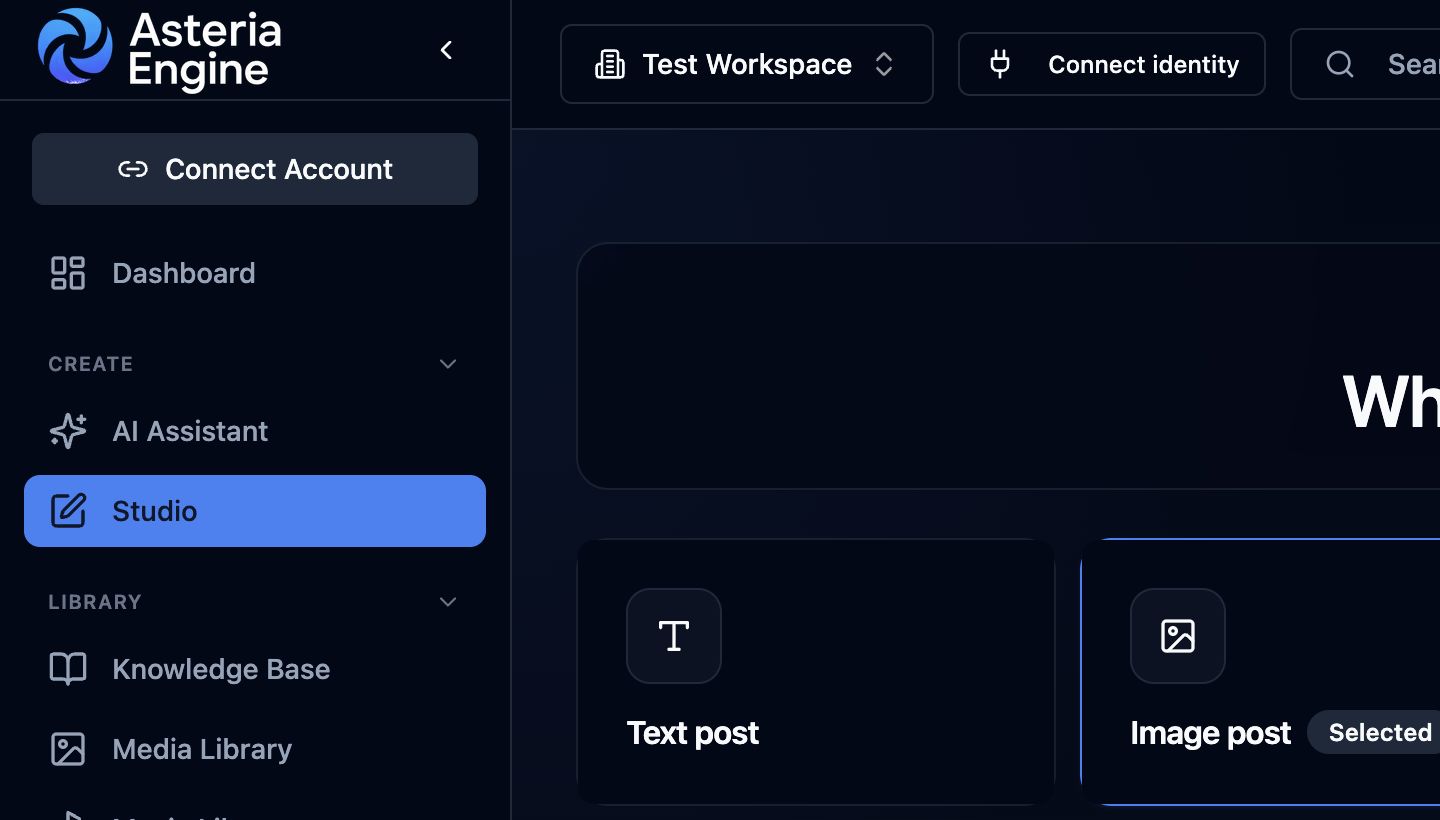 1. Open Studio. 2. Choose a format. 3. Continue to the format-specific templates, designers, and workflow actions.
- templates
- media designers
- workflow actions
If those are confused, the session becomes harder to control and the output quality usually drops.
What Templates Are For
Templates are the starting structure.
They help you avoid a blank brief by suggesting:
- caption direction
- media direction
- hashtag intent
- post shape or use case
Templates are useful because they create fast momentum. They are not always the final instruction set.
What the Media Designer Is For
The media designer is a refinement layer.
Use it when:
- the current prompt is too broad
- the chosen format needs a proper structured prompt
- the user wants to keep the template idea but needs a more production-ready design prompt
The designer improves the prompt while preserving the useful strategic direction already chosen.
What Workflow Actions Are For
Workflow actions are operational tools such as:
- research
- write
- media
- predict
- engage
- full workflow
These are not the same as templates.
Templates shape the brief. Workflow actions do work against that brief.
A Good Sequence
A reliable Studio sequence usually looks like this:
- choose the template or quick start
- set pillar and story angle
- run the media designer if needed
- generate the asset
- run write or research where useful
- review suggestions
- save a checkpoint or push the saved version back to the post
That sequence prevents generation from starting with an under-specified prompt.
Why This Matters
Teams often make one of two mistakes:
- they treat the template as if it is already a finished prompt
- they overuse workflow actions without fixing the brief first
Both create weaker output.
Studio works best when the brief is shaped first, then the designer strengthens the prompt, and only then do the generation and rewrite actions run.
Best Practice
Use templates for direction. Use designers for prompt quality. Use workflow actions for production work.
That is the clearest mental model for operators who want Studio to stay fast without becoming chaotic.
Research, Write, and Model Choice
The write path in Studio is not only a rewrite button.
Use these workflow choices as follows:
- use research as part of the writing path for fact-sensitive content
- ground document workflows in research before generation
- use the stricter research and compliance path for regulated-sector writing and documents
The caption canvas can also expose a text model choice inside rewrite tools when the workspace allows multiple text models. That lets operators compare rewrite quality without changing the workspace default model for everyone else.
Post Actions in Studio
Once a Studio session is linked to a real post, operators no longer need to leave Studio for the basic lifecycle controls.
Depending on your role and the linked post state, Studio provides actions such as:
- approve
- reject
- move to review
- post now
- duplicate linked post
- delete linked post
Studio is part of the production and publishing workflow, not only a generation surface.
Related Guides
- Studio overview
- Studio media generation guide
- Studio pillars and story angles guide