Overview
Google Business Profile is an important organic visibility channel for local and service-led businesses. Posts and updates can appear around the business profile on Google Search and Maps, which makes the channel different from a normal social feed.
In Asteria Engine, Google Business Profile should be treated as a local discovery and trust surface. It is best used for timely updates, offers, service announcements, event notices, and profile-supporting content that helps searchers understand what the business does before they click, call, or visit.
Before You Start
Confirm the right business profile
Before connecting the account, make sure the Google account has access to the correct Business Profile and that the profile belongs to the workspace you are configuring.
Check:
- the business is verified or otherwise eligible for profile management
- the Google account has manager or owner access to the profile
- the business name, website, phone number, and address/service-area details are correct
- the profile is not restricted by unresolved Google policy or ownership issues
Understand how this differs from Google Ads
Google Business Profile publishing is organic profile posting. Google Ads is paid campaign delivery. They are separate workflows inside Asteria Engine.
Use Google Business Profile when you want profile updates to support Search and Maps visibility. Use Google Ads when you want paid reach, campaign budgets, asset groups, and conversion goals.
Connection Workflow
Step 1: Open Platform Accounts
- Sign in to Asteria Engine
- Go to Settings > Platform Accounts
- Scroll to Connect a new platform
- Click Connect Google Business Profile. If a Google Business Profile is already connected, the button appears as Connect another
- Follow the on-screen instructions to complete the flow
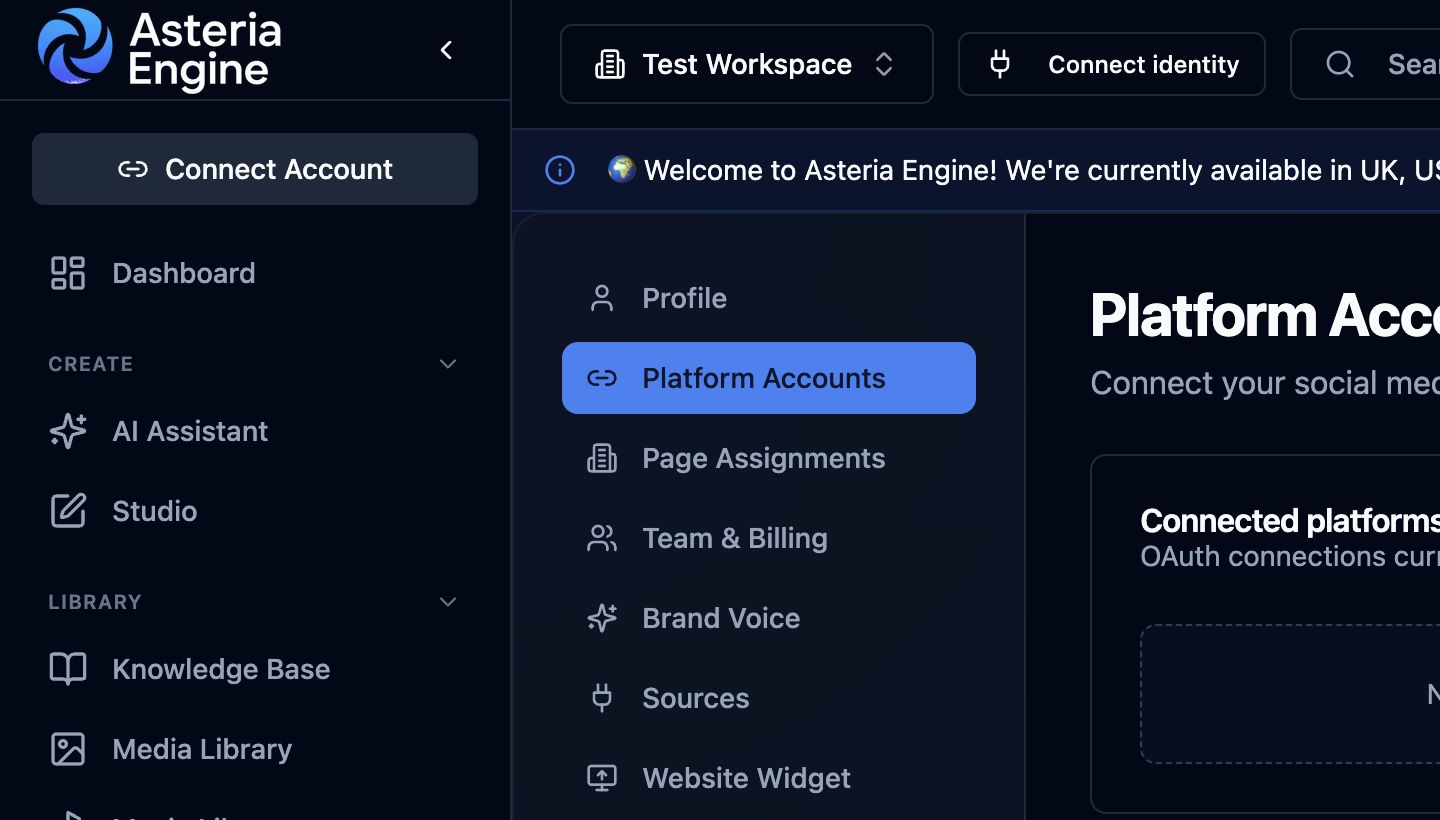 1. Open Platform Accounts in Settings, then scroll to Connect a new platform and choose the provider.
Step 2: Authorise the correct Google account
Choose the Google account that manages the Business Profile. If an agency or freelancer manages multiple profiles, confirm the account has access to the specific client profile before continuing.
Step 3: Select the correct location
If the account controls more than one profile or location, choose the profile that belongs to the workspace. Do not connect a personal, test, or unrelated location.
Step 4: Verify the workspace assignment
After connection, confirm the platform account is assigned to the right workspace. This is especially important for agencies managing several clients.
Some providers return every account, page, profile, or location attached to the Google user you authorised with. Some of those may not belong to the workspace you are currently configuring.
To clean that up:
- Disconnect and delete platform accounts that do not belong to the current workspace
- Go to Settings > Page Assignments
- Delete any page, account, profile, or location assignment that does not belong to the current workspace by clicking the bin icon beside it
What the Connection Enables
Once connected, Google Business Profile can sit inside the same publishing workflow as the rest of the content system.
Typical uses include:
- publishing profile updates from the content calendar
- promoting offers, announcements, and local service messages
- keeping local search content aligned with wider campaigns
- using contact intelligence for website, booking, phone, or direction CTAs
- comparing profile activity with other organic channels
- importing reviews for social proof drafts where review access is available
- reading location-level Search and Maps performance where Google returns metrics
Review Notifications
Google Business Profile can notify Asteria when new or updated reviews are available, but the notification setting must be enabled for the relevant GBP account and location.
Workspace administrators can enable review notifications for connected GBP accounts from the Google Business Profile settings. Confirm the setting after adding a new location so review import remains active.
If notifications are not available or do not arrive, use manual review sync from the Reviews page while the account permissions and Google configuration are checked.
Analytics
GBP analytics comes from Google Business Profile performance data.
Asteria can show location-level metrics such as:
- desktop and mobile Search impressions
- desktop and mobile Maps impressions
- call clicks
- website clicks
- direction requests
- bookings, conversations, or local post views where Google returns them
GBP performance data is not real-time. It can lag by roughly 48 hours, so date ranges that end today or yesterday may look empty even when the profile has activity.
Content Considerations
Keep Google Business Profile posts more direct than broad social posts.
Strong formats include:
- limited-time offers
- new service announcements
- seasonal opening or availability updates
- event reminders
- proof-led service posts
- local trust and credibility updates
Avoid treating the profile as a duplicate dump for every social post. Searchers often have stronger intent than social scrollers, so the copy should make the next action clear.
Asteria Engine keeps Google Business Profile copy direct, removes social-only hashtag blocks, and uses the profile account's default post type, CTA button, and button URL unless the post overrides them.
If the account default is Offer or Event, add the required offer or event details before publishing. Without those details, Asteria sends the content as a standard update instead of an incomplete structured post.
Troubleshooting
I cannot see the profile I expected
Check that the Google account used in the connection flow has access to the Business Profile. If the profile belongs to a different Google account or agency manager, add the right user in Google Business Profile first.
Publishing fails after connection
Review:
- profile verification state
- account permissions
- workspace assignment
- post content and media eligibility
- whether Google has restricted the profile or location
I connected the wrong location
Disconnect the incorrect platform account from Asteria Engine and reconnect using the correct Google account and location.