Overview
Facebook and Instagram often sit at the centre of small-business and consumer-brand publishing workflows. In Asteria Engine, these channels are connected through Meta’s business ecosystem, which means setup quality on the Meta side matters just as much as anything inside Asteria.
This guide covers how to connect the right assets, what the connection enables, where the limits are, and how to avoid the most common Meta-related setup mistakes.
Before You Start
Use the correct Facebook asset
Asteria is designed to work with Facebook Pages, not personal Facebook profiles. Make sure the page you want to connect is the one the business actually uses for publishing.
Use the correct Instagram account type
Instagram must be a Business or Creator account where required by the connection workflow. If the Instagram account is still personal, the setup will not behave as expected.
Make sure the Meta relationship is clean
The Facebook Page and Instagram account should already be linked correctly before you begin. If that relationship is broken or incomplete, the Instagram side often becomes the source of confusion later.
Check who controls access
For agencies and multi-person teams, the person authorising the connection should be the person with real Meta-side permission to the page and linked Instagram account.
Connection Workflow
Step 1: Open Platform Accounts
- Sign in to Asteria Engine
- Go to Settings > Platform Accounts
- Scroll to Connect a new platform
- Click Connect Facebook or Connect Instagram. If that platform is already connected, the button appears as Connect another
- Follow the on-screen instructions to complete the flow
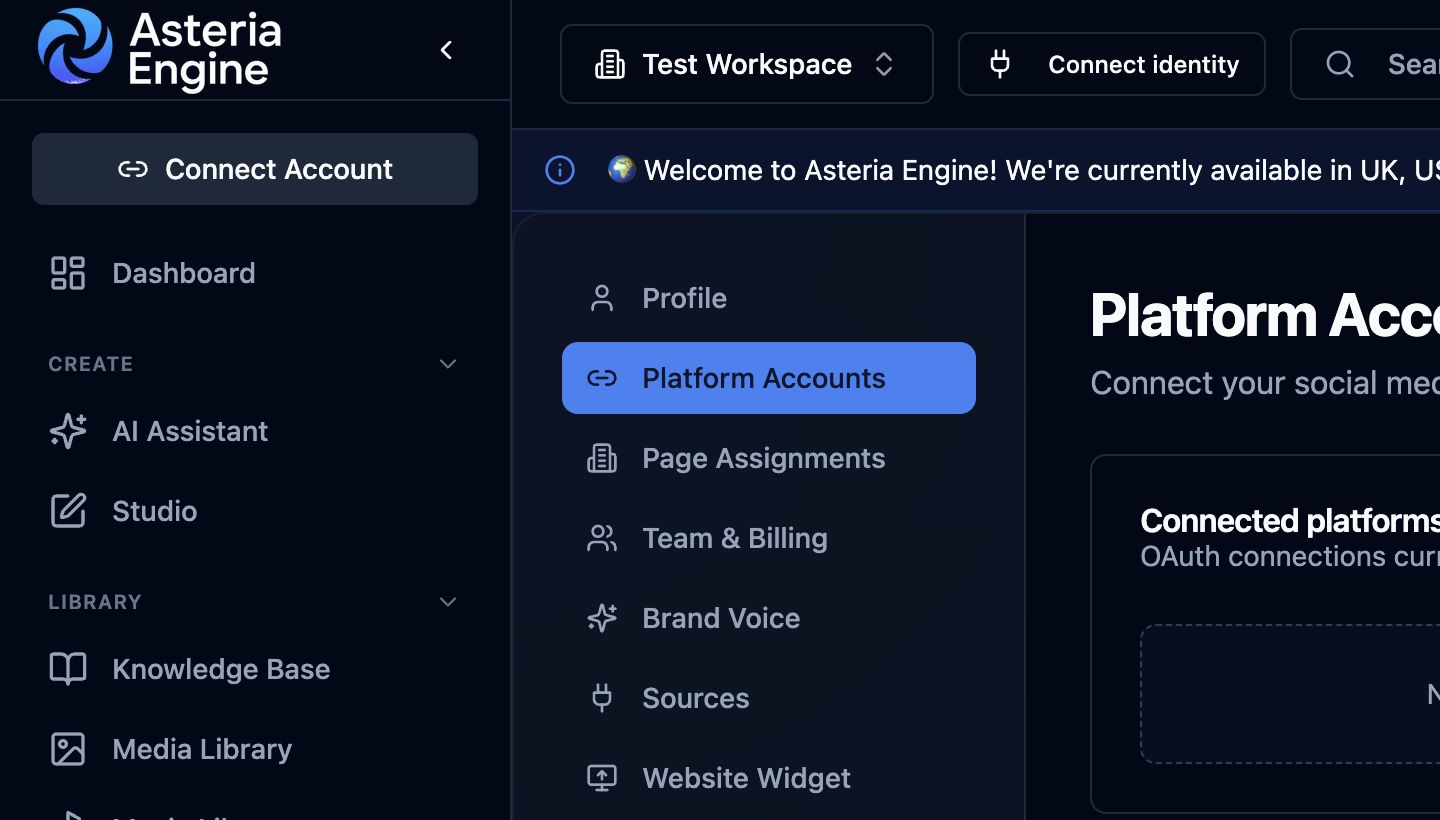 1. Open Platform Accounts in Settings, then scroll to Connect a new platform and choose the provider.
Step 2: Authorise with Meta
Meta will ask you to approve the permissions required for Asteria to work with the selected business assets. Review the request and continue.
Step 3: Select the right Facebook Pages
Choose the pages that belong to the workspace you are configuring. This matters most for agencies or businesses with several brands.
Step 4: Select eligible Instagram accounts
If Instagram business or creator accounts are linked to those pages, you should see them as available connection options.
Choose only the Instagram accounts that genuinely belong in the workspace.
Step 5: Return to Asteria and confirm status
After the flow completes, the connected Facebook Page and Instagram account should appear in Asteria as active connections.
Meta may return pages, Instagram accounts, or business assets that do not belong to the workspace you are configuring. Disconnect and delete anything that does not belong to the current workspace, then go to Settings > Page Assignments and remove incorrect assignments with the bin icon.
What the Connection Enables
Once connected, Facebook and Instagram can become part of the same wider content workflow:
- publishing and scheduling from one workspace
- shared campaign planning in the calendar
- media-led content workflows
- analytics and channel comparison
- approval and team-review process before posts go live
The operational value comes from managing Meta publishing inside the same system as the rest of the content process, rather than treating Meta as a separate manual island.
Facebook Workflow Considerations
Facebook is usually strongest when used for:
- community-oriented updates
- broader business communication
- informative or link-supporting content
- brand consistency across ongoing publishing
Use visuals that are clear and properly framed, and avoid assuming that longer or noisier copy automatically improves results.
Instagram Workflow Considerations
Instagram is more dependent on visual quality and asset fit.
Typical strengths include:
- feed posts built around strong images
- carousel-style storytelling
- visual brand consistency
- mobile-first creative structure
Instagram generally punishes weak media more quickly than Facebook. If the image quality, framing, or format is poor, the workflow can still function technically while producing weak outcomes commercially.
For the media side of the workflow, also review the Media Library Guide.
Known Limits and Boundaries
Keep your expectations operationally realistic.
Current practical constraints include:
- Facebook Groups are outside the normal page workflow here
- direct messages are not part of the publishing workflow
- some comment or reply actions may still be better handled natively on Meta
- certain format types may require native Meta handling depending on the asset and channel behaviour
The right mindset is to use Asteria for the planning, publishing, and operating workflow it is built for, while still respecting where Meta keeps tighter native control.
Common Setup Problems
You do not have permission to manage the page
This is usually a Meta-side access issue, not an Asteria issue.
Confirm that the account used for authorisation has the right level of page access and business access.
Instagram account is missing from the selection flow
This usually means one of the following:
- the Instagram account is not the correct account type
- it is not linked properly to the Facebook Page
- the authorising user does not control both sides cleanly
Fix the Meta relationship first, then reconnect.
The connection expires later
Treat this first as a token or permission-refresh issue.
Work through:
- reconnect the affected account
- verify the Meta permissions again
- confirm the page-account linkage still exists correctly
Meta authorisation behaviour feels inconsistent
Meta setup flows can be sensitive to stale sessions or conflicting logged-in accounts. If the behaviour looks wrong, retry in a clean browser session — but only after you confirm you are using the right Meta user.
Publishing Problems
If posts are failing after connection:
- confirm the page or Instagram account is still active in Asteria
- confirm the asset is appropriate for the channel
- confirm the content does not trigger a Meta-side issue
- check whether the account itself has restrictions or warnings
Instagram failures often trace back to asset or account-state issues more than caption text alone.
Analytics and Review
Once connected, Facebook and Instagram should not be judged purely by whether they publish. The more useful questions are:
- which creative formats actually perform best?
- does one channel deserve more attention than the other?
- are saves, clicks, reach, or engagement telling a clear story?
- is the team improving output quality over time or only increasing volume?
Use the Analytics Guide for the reporting workflow and decision process.
Security and Account Control
Overlapping access across pages, Instagram accounts, and external tools can make ownership difficult to verify. Keep administrative access current and limited to the people who need it.
Good practice:
- connect only the assets the workspace really owns
- keep Meta-side access roles reviewed regularly
- remove ex-team members quickly
- review third-party app access periodically
For the broader protection model, see the Security Guide.
Recommended Next Steps
After the Meta connection is live:
- publish a controlled test post
- verify the asset displays correctly on-platform
- confirm the calendar and status flow are behaving properly
- review performance after the first posts land
Related guides: