Overview
This guide explains how to connect a LinkedIn company page to Asteria Engine so your team can plan, schedule, publish, and review LinkedIn content from the same operating workflow as your other channels.
LinkedIn is usually one of the cleanest platforms to connect, provided the correct page permissions are already in place. Most connection problems come from account access, not from Asteria itself.
Before You Connect LinkedIn
Use the right LinkedIn asset
Asteria is designed to work with LinkedIn company pages, not personal profiles. Before starting, make sure you are connecting the page that actually belongs to the brand or client workspace you are configuring.
Confirm your page permissions
You should already have the page-level permissions required to manage the company page. If access is partial, inconsistent, or delegated through the wrong user, the connection may complete but the publishing workflow can still fail later.
Make sure the workspace is ready
Before connecting the page, confirm that the Asteria workspace already exists and reflects the correct brand. Platform connections should follow workspace setup, not precede it.
Connection Workflow
Step 1: Open Platform Accounts
- Sign in to Asteria Engine
- Go to Settings > Platform Accounts
- Scroll to Connect a new platform
- Click Connect LinkedIn. If LinkedIn is already connected, the button appears as Connect another
- Follow the on-screen instructions to complete the flow
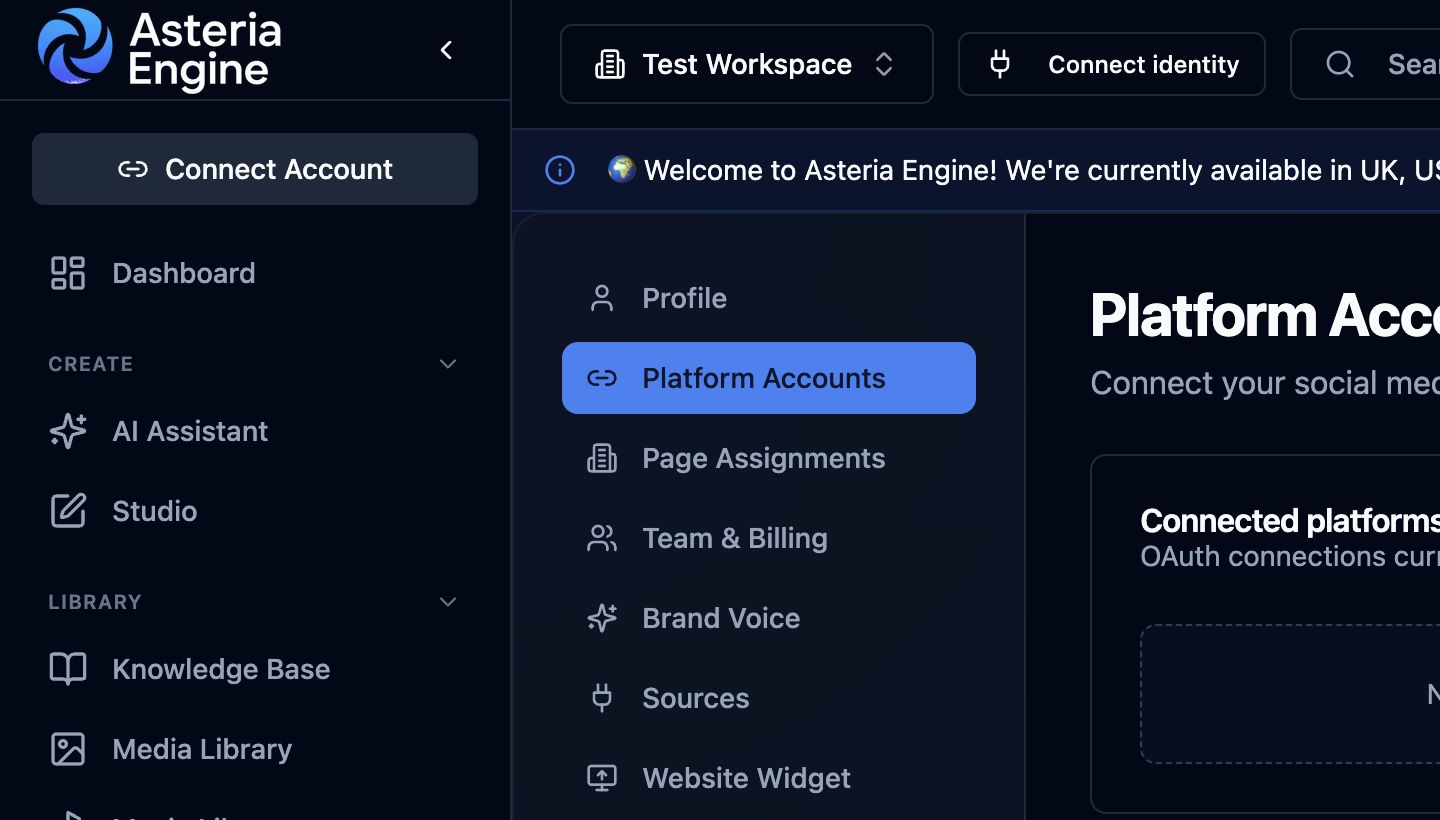 1. Open Platform Accounts in Settings, then scroll to Connect a new platform and choose the provider.
Step 2: Authorise LinkedIn access
LinkedIn will ask you to approve the permissions required for Asteria to work with your page. Review the authorisation request and continue.
Step 3: Assign the correct page in Asteria
LinkedIn does not provide a page picker inside the authorisation flow. After you approve access, Asteria receives the company pages available to the LinkedIn user you connected with.
If your LinkedIn account can access more than one company page, use Settings > Page Assignments to assign the correct page to the current workspace. This is especially important for agencies, consultants, or operators who manage multiple brands.
Step 4: Verify status and remove the wrong pages
Once the flow completes, the connected page should appear in your platform list and show as active.
At that point, the workflow is ready for content scheduling and publishing.
LinkedIn may return company pages that do not belong to the current workspace. Disconnect and delete the wrong platform accounts, then go to Settings > Page Assignments and remove incorrect assignments with the bin icon.
What LinkedIn Connection Enables
Once connected, LinkedIn becomes part of the broader Asteria workflow. That typically means your team can:
- schedule LinkedIn posts from the main publishing flow
- use AI-generated content in a LinkedIn-ready structure
- review post status and publishing outcomes
- include LinkedIn in analytics and performance comparisons
- keep LinkedIn planning inside the same workspace as the rest of the campaign
The value is not simply that a post can be sent to LinkedIn. The real value is that LinkedIn becomes part of a controlled content operating process rather than a disconnected manual task.
LinkedIn Content Considerations
LinkedIn generally rewards a different style of content from more entertainment-led platforms.
Content that tends to work well
Typical high-performing LinkedIn content includes:
- professional insight
- operational lessons
- business observations
- proof-led posts
- case-study style updates
- opinion with clear relevance to a specific audience
Practical formatting guidance
A few useful defaults for LinkedIn content planning:
- lead with a clear hook quickly
- keep the opening lines strong enough to earn the “see more” click
- use only a small number of relevant hashtags
- choose visuals that support credibility rather than noise
- write for professional readers, not generic social-media engagement patterns
If you want the broader planning context for LinkedIn content, also review the AI Content Generation Guide and Content Calendar Guide.
Common Connection Problems
You do not have permission to post to the page
This usually means the LinkedIn account used for authorisation does not have the right company-page access.
Check the page’s admin settings and confirm that the correct user actually manages the page.
The page is not appearing after authorisation
Possible causes include:
- the logged-in LinkedIn user is tied to the wrong page set
- access is weaker than expected
- the session used for authorisation is stale or conflicted
Retry in a clean browser session if needed, but first confirm the correct LinkedIn user is being used.
The connection later expires or stops working
Treat this as a token or permissions issue first.
Work through this sequence:
- confirm the page is still present in Asteria
- check whether the status shows expired or inactive
- reconnect the page cleanly
- review LinkedIn-side app permissions if the problem persists
Publishing Problems on LinkedIn
If a LinkedIn post fails after the connection looked healthy, check these areas first:
- page connection still active
- media format is acceptable
- content does not create a LinkedIn-side rejection
- the scheduled post was still valid at publish time
Do not assume every failure is a platform outage. Many “LinkedIn failed” issues come from permissions drift or content formatting problems.
Analytics and Operational Value
A LinkedIn connection is useful not only for publishing but also for performance review.
The main questions most teams should ask later are:
- which post types perform best on LinkedIn specifically?
- are professional proof-led posts outperforming generic tips?
- is LinkedIn worth more calendar space relative to the other channels?
- are we learning enough to refine the next batch of posts?
That is where the connection starts to become strategically valuable rather than purely technical.
For the reporting side, see the Analytics Guide.
Security and Governance
Because LinkedIn often sits close to company reputation, keep governance tight.
Recommended practice:
- only connect pages the workspace genuinely controls
- avoid using personal account workarounds casually
- review third-party app access periodically
- remove stale operators from both LinkedIn and Asteria when responsibilities change
For the wider account-protection model, see the Security Guide.
Recommended Next Steps
After LinkedIn is connected:
- create one test post and schedule it
- confirm the publish flow behaves as expected
- add LinkedIn-relevant example posts to improve AI tone
- review analytics after the first live posts land
Related guides: