Overview
YouTube publishing requires coordinated video production, metadata, thumbnails, scheduling, and performance review. Connecting YouTube to Asteria Engine brings those planning and publishing steps into your wider content workflow.
This guide explains how to connect a YouTube channel, prepare content for publishing, understand which controls remain in YouTube Studio, and review channel performance.
Before You Start
Confirm the channel is ready
Before connecting anything, make sure the YouTube channel is the right business asset and is in usable standing.
Check:
- the correct Google account controls the channel
- the channel is fully set up
- the account is not operating under unresolved restrictions
- longer-video requirements are already handled where relevant
Decide whether you need a simple or advanced setup
Most teams should start with the straightforward connection path. The advanced route only makes sense if you have a genuine reason to care deeply about quota, custom project control, or high-volume video operations.
Accept that YouTube has a native control layer
Asteria Engine supports planning, scheduling, metadata, and workflow management. Some channel-specific controls remain in YouTube Studio; use each application for the actions it supports.
Connection Workflow
Step 1: Open Platform Accounts
- Sign in to Asteria Engine
- Go to Settings > Platform Accounts
- Scroll to Connect a new platform
- Click Connect YouTube Shorts. If YouTube is already connected, the button appears as Connect another
- Follow the on-screen instructions to complete the flow
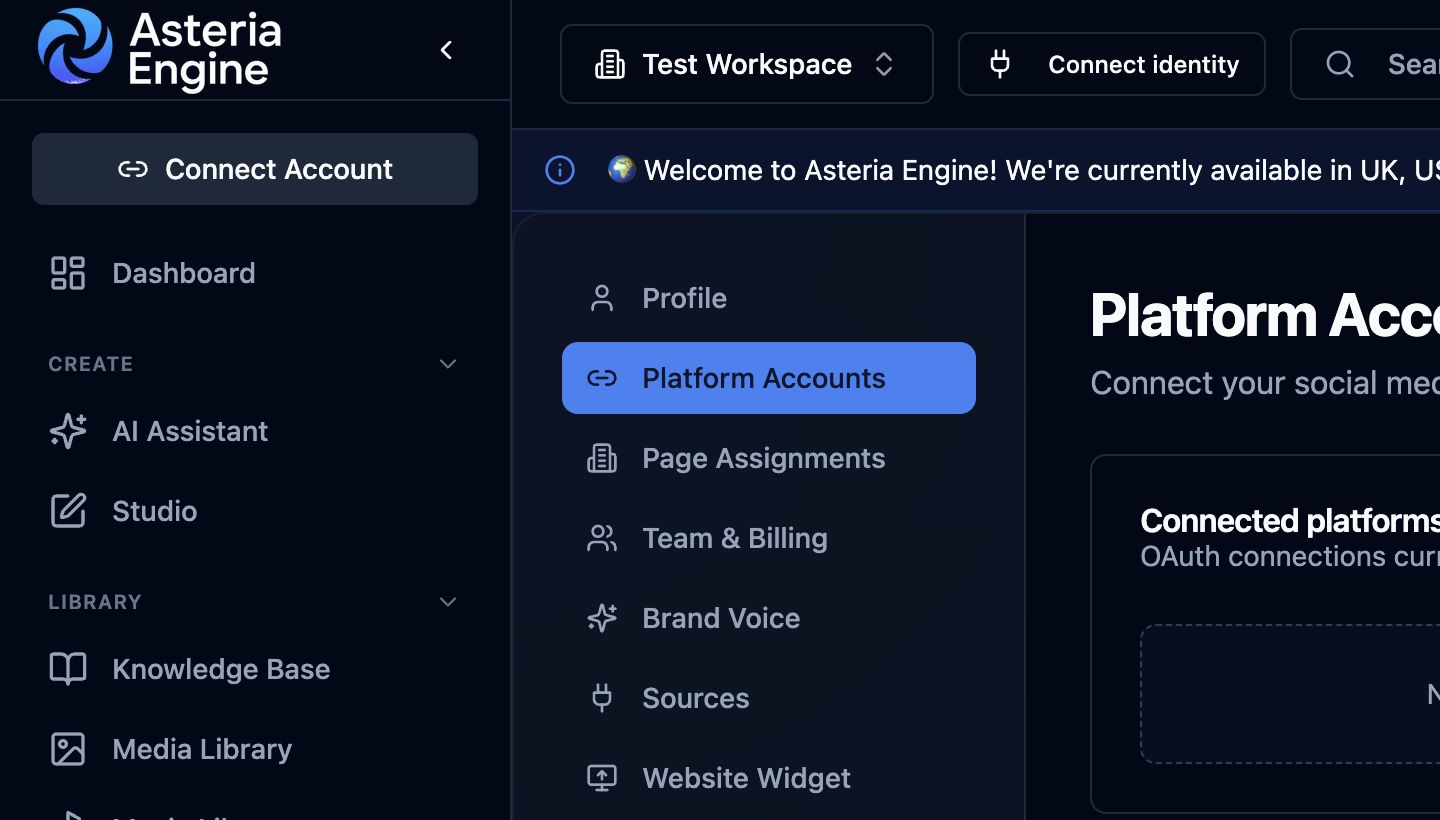 1. Open Platform Accounts in Settings, then scroll to Connect a new platform and choose the provider.
Step 2: Choose the connection route
For most users, the standard connection flow is the right place to begin. Use the more advanced route only if your operational requirements justify the added complexity.
Step 3: Authorise the correct Google account
During the Google authorisation flow:
- choose the account that actually controls the channel
- review the requested permissions carefully
- continue only once you are sure the right channel context is in play
Step 4: Select the channel if needed
If the Google account has access to more than one channel, select the correct one for the workspace.
Step 5: Return to Asteria and verify the connection
Once complete, confirm the connected channel matches the intended brand and that the platform status is active.
Google may return channels that do not belong to the current workspace. Disconnect and delete unwanted platform accounts, then go to Settings > Page Assignments and remove incorrect assignments with the bin icon.
What the YouTube Connection Is Best Used For
Once connected, YouTube becomes part of the same broader operating workflow as the rest of the content system.
Typical value areas include:
- planning video publishing from the same calendar as other channels
- preparing titles, descriptions, and publishing context more consistently
- keeping video content inside the same team workflow as image and text channels
- reviewing performance trends without splitting every decision across disconnected tools
That is particularly useful for businesses trying to treat YouTube as part of a real content system rather than a separate creative silo.
What Still Belongs in YouTube Studio
Even with a solid Asteria workflow, some tasks remain more native to YouTube Studio.
Examples typically include:
- deeper channel administration
- end-screen and card configuration
- playlist-specific control
- certain monetisation details
- native comment handling depth
- some channel-level optimisation and policy tasks
Plan for this split so each action is completed in the application that supports it.
Video Workflow Considerations
Metadata matters more on YouTube
Titles, descriptions, thumbnails, and categorisation matter heavily on YouTube because discovery and click-through behaviour are part of the content outcome, not just the packaging.
Prepare each video for publishing
Before publishing, review:
- whether the title is clear and search-aware
- whether the description actually supports the video topic
- whether the thumbnail is strong enough to earn attention
- whether the video belongs in the current publishing calendar at all
Weak metadata and weak thumbnail thinking can waste strong video content.
Practical Format Guidance
Use clean source files
The stronger the source asset quality, the easier the publish workflow becomes. Poor source files create downstream friction in upload, framing, and perception.
Keep thumbnails deliberate
Thumbnail quality is not cosmetic on YouTube. It is part of the commercial outcome. If the thumbnail is weak, the content can underperform even when the topic is strong.
Treat YouTube as a slower, heavier channel
Unlike faster text-first platforms, YouTube usually deserves more planning per piece. Quality, packaging, and follow-through matter more than simply pushing out more volume.
Common Setup Problems
The wrong Google account is being authorised
This is one of the most common issues. If the wrong Google account is selected during setup, the correct channel may never appear in the flow.
Always verify the account context before assuming the app is the problem.
The channel is not appearing
Possible causes include:
- the wrong Google account is in use
- the expected channel is not actually controlled by that account
- the authorisation flow needs to be repeated cleanly
Connection issues after setup
If the channel was connected and later stopped behaving correctly:
- check the platform status in Asteria
- reconnect the channel if needed
- review the Google-side permissions and account context
- confirm the channel itself is still in healthy standing
Publishing Problems
If a YouTube upload or scheduled publish fails, check these layers in order:
- channel connection is still active
- source file is valid
- the account is using the right channel context
- metadata and upload state are acceptable
- there is no native-platform issue blocking the action
Video workflows are heavier than text workflows, so failures often have more than one contributing factor.
Analytics and Strategic Use
YouTube should be assessed differently from faster social channels.
Useful questions include:
- are titles and thumbnails improving performance?
- which subjects are earning the strongest watch behaviour?
- is the channel worth more production effort relative to the return?
- should YouTube content feed other channels or remain a separate pillar?
Review views alongside watch behaviour, engagement, conversions, and the contribution each video makes to the broader content strategy.
For the wider reporting model, see the Analytics Guide.
Security and Governance
Because YouTube often sits inside a broader Google account context, access discipline matters.
Good practice:
- keep control of which Google account owns the connection
- limit account access to the people who need it
- review app access periodically
- remove stale users and channel operators promptly
For the broader account-protection model, see the Security Guide.
Recommended Next Steps
After the YouTube connection is active:
- publish or schedule a controlled test video
- verify the title, description, and thumbnail workflow behaves as expected
- decide what still belongs natively in YouTube Studio
- use analytics to judge whether the channel deserves more planned effort
Related guides: