Overview
X can support fast-moving commentary, reactive content, and short-form visibility. Connection and publishing availability depend on X access policies, account standing, permissions, and any applicable platform charges.
This guide explains how to connect X to Asteria Engine, verify account access, prepare content, and assess the channel alongside your other social accounts.
Before You Start
Confirm the account fits your strategy
Connect X when the business has a clear reason and sufficient content to publish there consistently.
Good reasons to connect X include:
- thought-leadership or commentary workflows
- reactive content tied to timing or news
- founder-led visibility
- real audience overlap with the target market
Check the account state first
Before authorising anything, make sure the X account:
- is in good standing
- is controlled by the right authorised person
- has the required API or subscription access where applicable
- is not already suffering from unresolved restrictions or security issues
Treat the cost layer seriously
X access is not only a technical question. It can also be a commercial one because of API tier requirements and external platform policy. Make sure the operational value of the channel justifies the added friction and cost.
Connection Workflow
Step 1: Open Platform Accounts
- Sign in to Asteria Engine
- Go to Settings > Platform Accounts
- Scroll to Connect a new platform
- Click Connect X (Twitter). If X is already connected, the button appears as Connect another
- Follow the on-screen instructions to complete the flow
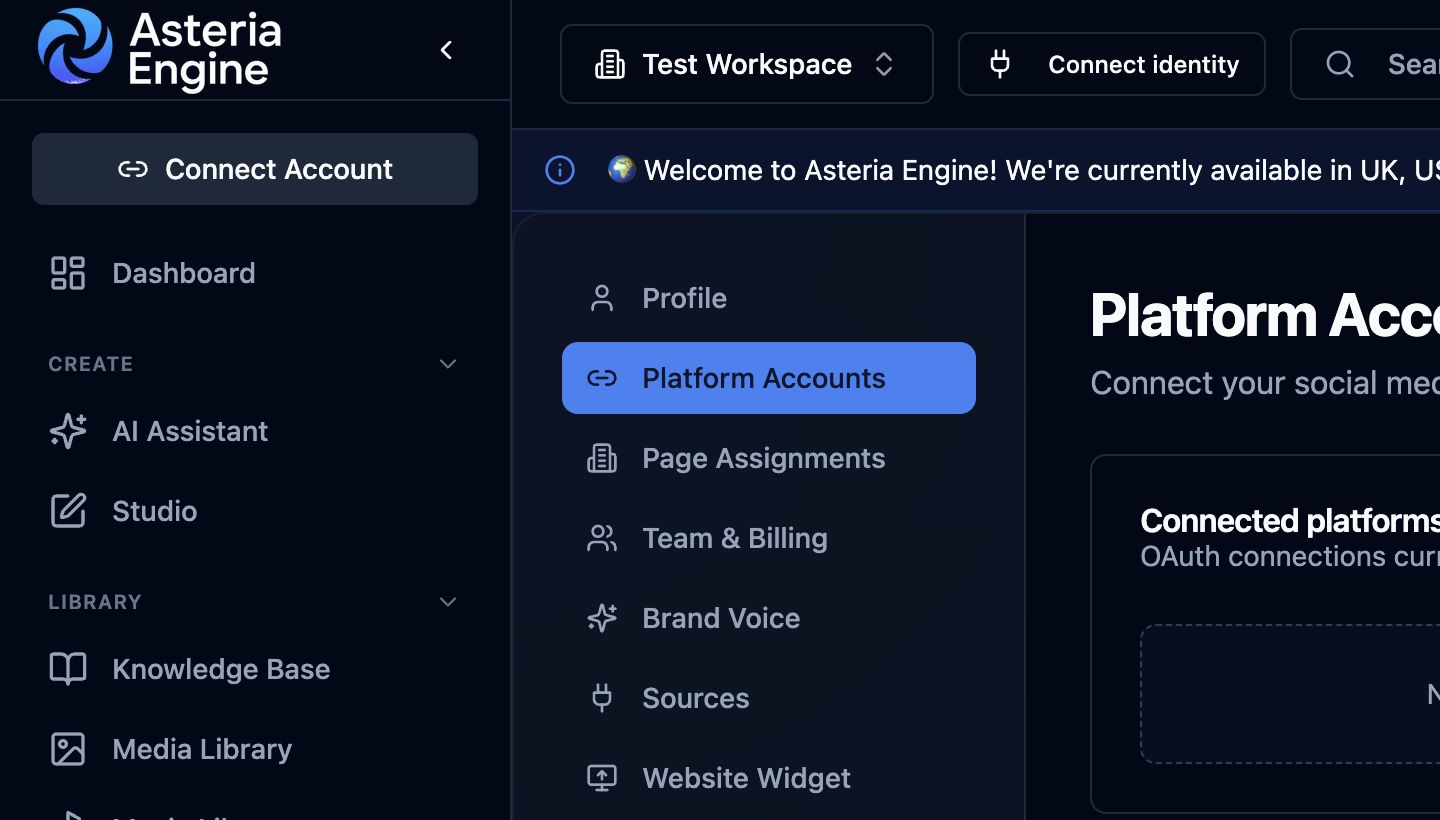 1. Open Platform Accounts in Settings, then scroll to Connect a new platform and choose the provider.
Step 2: Authorise access
You will be redirected to X for authorisation. Use the correct account and approve the access request needed for the publishing workflow.
Step 3: Return to Asteria and verify status
Once the connection is complete, the X account should appear as active in Asteria. Confirm the account details match the workspace you intended to connect.
If the provider returns accounts that do not belong to this workspace, disconnect and delete them. Then go to Settings > Page Assignments and remove incorrect assignments with the bin icon.
What the Connection Enables
Once connected, X can be used inside the wider Asteria workflow for:
- short-form post scheduling
- AI-assisted draft creation
- calendar-based planning
- status tracking and failure review
- cross-channel performance comparison
The connection brings X publishing into the same planning and reporting process as your other supported channels.
How to Think About X Content
X is not usually the best place for the same structure you would use on LinkedIn or Instagram.
Content tends to work better when it is:
- fast to understand
- sharper in tone
- more direct in framing
- built around timely relevance or opinion
If the content sounds like compressed LinkedIn copy, it often underperforms.
For drafting and refinement strategy, also review the AI Content Generation Guide.
Common Setup Problems
The account will not connect cleanly
This usually points to one of these issues:
- wrong account used during authorisation
- insufficient X-side access or subscription state
- stale browser session
- account restriction or security issue on the X side
The connection later stops working
Treat that first as an access or token issue:
- confirm the status inside Asteria
- reconnect if needed
- review X-side app access and account security
- check whether the account state changed outside Asteria
The platform is imposing limits
X is one of the more limit-sensitive platforms. If you hit rate or policy boundaries, handle the issue structurally rather than repeatedly retrying blind.
Publishing Problems on X
If a post fails on X, check:
- whether the account is still connected
- whether the copy is too repetitive or too similar to recent posts
- whether media or link handling is causing the failure
- whether the account itself is under platform constraints
Review the message shown in Asteria Engine and check the account status in X before retrying.
Commercial Reality of X Integration
X is not a default “must-connect” platform for every business.
Before expanding usage, ask:
- is the target audience genuinely active there?
- is the content style required by X sustainable for the team?
- is the additional external platform cost justified?
- does X create enough return to deserve calendar space?
That is a strategy question, not only a setup question.
Analytics and Decision-Making
Once connected, evaluate X using its contribution to the team’s content and business objectives.
Useful questions include:
- are short-form commentary posts delivering meaningful engagement?
- are click-driven posts underperforming compared with native thought-led posts?
- does X deserve more, less, or different effort next month?
For the reporting and review model, see the Analytics Guide.
Security and Governance
Because X accounts can be particularly sensitive to account-state changes, protect the channel carefully.
Recommended practice:
- keep account access narrow
- use strong account security and 2FA
- review third-party app access periodically
- remove stale or unnecessary operators quickly
For the broader account-protection model, see the Security Guide.
Recommended Next Steps
After the X connection is active:
- create one controlled test post
- confirm the scheduling and publish flow works cleanly
- review whether the channel fits your actual content strategy
- use analytics to decide whether X deserves sustained effort
Related guides: